

★The PPT Plugin That Changed Scientific Research: A Deep Dive into SlideSCI★
Have you ever struggled with creating research presentation slides? Do you spend hours trying to align images, manually adjust captions, and wrestling with code blocks and mathematical equations? If you’ve faced these challenges, this specialized PowerPoint plugin designed for researchers might completely transform your workflow.


Why Researchers Can’t Live Without PPT Plugins
In academic research, PowerPoint presentations are indispensable tools. Whether it’s weekly lab meetings or conference presentations, we all need to create professional and content-rich slides. However, Microsoft PowerPoint, as a general-purpose office software, presents numerous challenges in research scenarios:
Common Pain Points in Research PPT Creation
Image Processing Difficulties
- 🍄
Images cannot have direct captions – you must manually insert text boxes - 🍄
Manually aligning multiple images is time-consuming and frustrating - 🍄
Batch arrangement of images often results in inconsistent formatting
Content Insertion Challenges
- 🍄
Code blocks require screenshots or copying from external tools - 🍄
LaTeX mathematical formulas are complex to paste, often requiring AI recognition or manual processing - 🍄
Markdown notes cannot be directly imported
Layout Adjustment Frustrations
- 🍄
Similar elements across different slides require repetitive position adjustments - 🍄
Batch modifying image dimensions involves complex operations
Faced with these pain points, existing PPT plugins in the market are either overly complex or insufficiently targeted. The SlideSCI plugin was specifically created to address these practical problems.
SlideSCI: A Solution Tailored for Research

SlideSCI is a PowerPoint plugin developed using Visual Studio Tools for Office and C# programming language, specifically designed for researchers. Nearly all of this plugin’s development was accomplished with AI assistance, reflecting new trends in modern software development.
Core Values of the Plugin
-
Solving Real Pain Points: Every feature addresses specific problems in research PPT creation -
Improving Production Efficiency: Batch operations replace repetitive manual labor -
Maintaining Content Professionalism: Supporting research standard formats and specifications -
Lowering Usage Barriers: Simple and easy to learn, requiring no complex configuration
Detailed Feature Analysis
1. Batch Image Caption Processing
In research papers, image caption formatting standards are crucial, and SlideSCI provides powerful batch caption functionality:
Feature Characteristics:
- 🍄
Support for simultaneous multi-image selection - 🍄
Batch addition of centered captions - 🍄
Option for automatic grouping of captions and images - 🍄
Consistent caption formatting maintenance
Application Scenarios:
- 🍄
Figure arrangement in research papers - 🍄
Research presentation chart creation - 🍄
Batch annotation of experimental result images


2. Research Image Labeling System
Sub-figure labels (such as Figure A, Figure B, etc.) are essential in research graphics, and the plugin provides professional label templates:
Supported Formats:
- 🍄
A, B, C… (Uppercase letters) - 🍄
a, b, c… (Lowercase letters) - 🍄
A), B), C)… (Uppercase letters with parentheses) - 🍄
a), b), c)… (Lowercase letters with parentheses) - 🍄
1, 2, 3… (Numbers) - 🍄
1), 2), 3)… (Numbers with parentheses)
Default Settings:
- 🍄
Font: Arial - 🍄
Position: Bottom-left corner of image - 🍄
Style: Black border marker


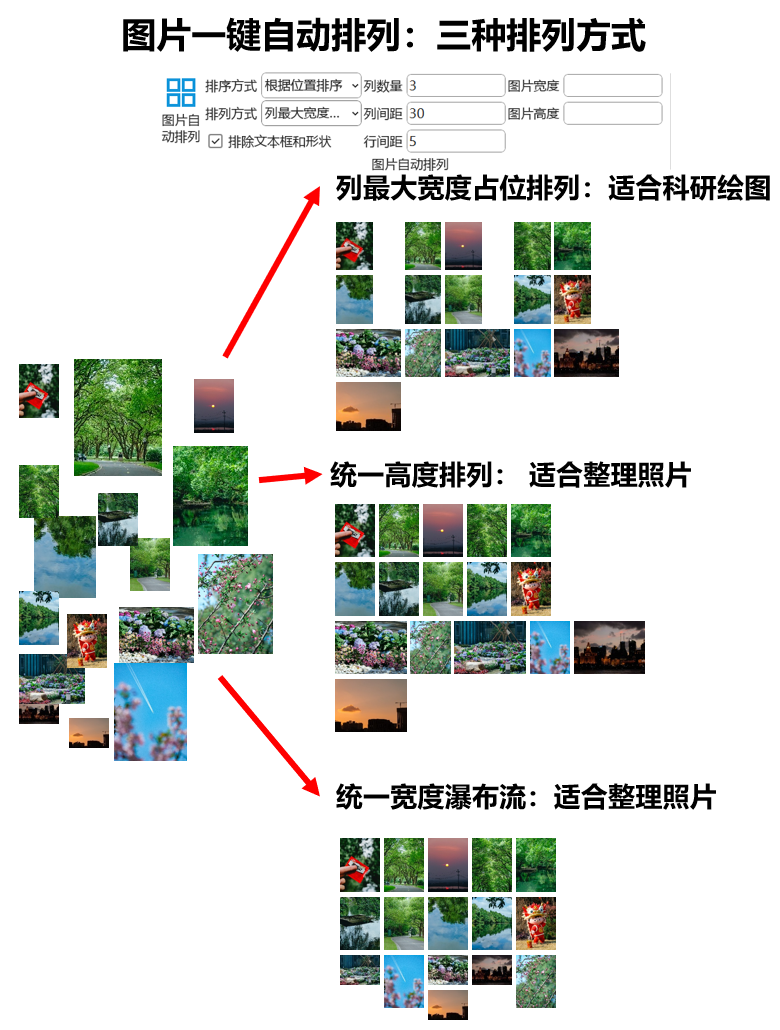
3. Intelligent Image Auto-Arrangement
Neat arrangement of multiple images is a common requirement in research PPT creation, and SlideSCI provides flexible arrangement options:
Sorting Methods:
-
Position-based Sorting: Automatically determines arrangement order based on user’s manual rough positioning -
Multi-selection Order Sorting: Arranges according to user’s selection order
Arrangement Methods:
-
Maximum Column Width Spacing Arrangement:
- 🍄
Spaces according to each column’s maximum width - 🍄
Maintains table-like layout - 🍄
Suitable for research image arrangement
- 🍄
-
Unified Height Arrangement:
- 🍄
All images have unified height - 🍄
If not set, uses the first image’s height
- 🍄
-
Unified Width Waterfall:
- 🍄
All images have unified width - 🍄
Waterfall-style layout - 🍄
If not set, uses the first image’s width
- 🍄
Parameter Settings:
- 🍄
Number of images per column - 🍄
Column and row spacing - 🍄
Target image width and height

4. Copy-Paste Format Functions
Maintaining format consistency in research PPTs is important, and the plugin provides various copy-paste functions:
Copy-Paste Format:
- 🍄
Copy format styles of shapes and text - 🍄
Batch apply to other elements - 🍄
Maintain design consistency
Copy Position and Paste Element Position:
- 🍄
Copy position information of multiple elements - 🍄
Batch paste to other elements - 🍄
Support multi-selection copy and paste - 🍄
Keep element positions consistent across different slides


Practical Application Scenarios:
-
Cross-page Layout Copy: Copy title layout from the first slide to other slides -
Group Element Alignment: Pre-arrange one group of elements, copy positions to other groups -
Batch Size Uniformity: Simultaneously adjust width and height of multiple images
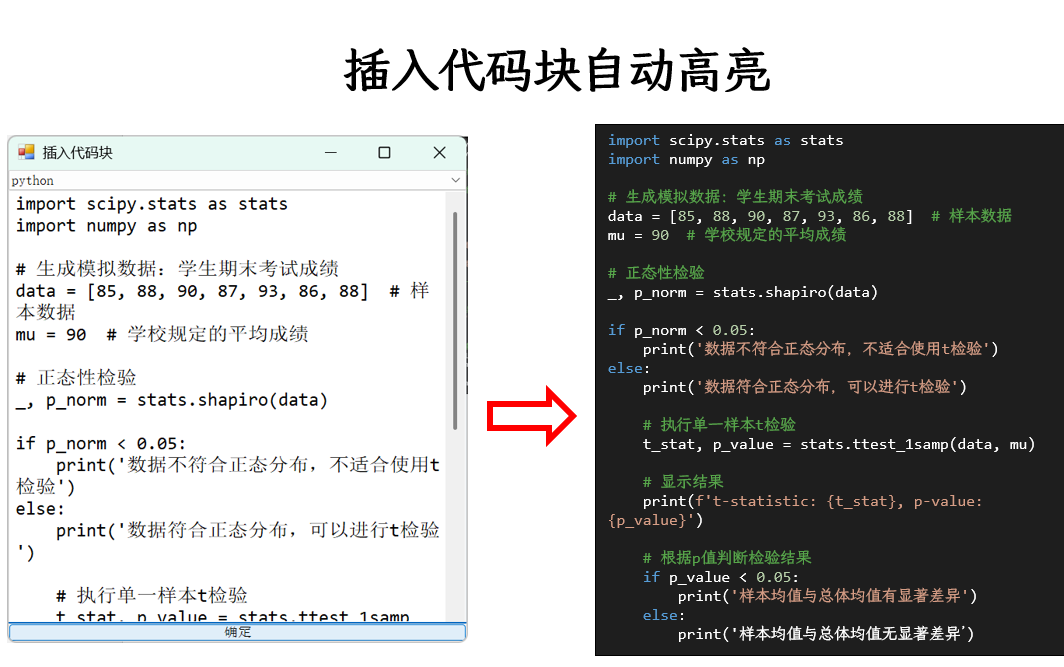
5. Code Block Insertion with Highlighting
Code display is important content in research presentations, and the plugin supports syntax highlighting for multiple programming languages:
Supported Languages:
- 🍄
MATLAB - 🍄
Python - 🍄
R - 🍄
JavaScript - 🍄
HTML/CSS - 🍄
C# - 🍄
Fortran
Feature Characteristics:
- 🍄
Automatic syntax highlighting - 🍄
Support for black and white background switching - 🍄
Default black background, can click to deactivate and switch to white background - 🍄
Independent text boxes for code, supporting subsequent editing

6. LaTeX Mathematical Formula Insertion
Mathematical formulas are core content in STEM research presentations, and the plugin provides multiple LaTeX insertion methods:
Insert Markdown (Mixed Text and Formula)
- 🍄
Supports simultaneous insertion of Markdown text and mathematical formulas - 🍄
Suitable for academic content with extensive mathematical formulas
Insert LaTeX Text
- 🍄
Individual insertion of editable mathematical formulas - 🍄
Uses PPT’s native functionality, suitable for simple formulas
Insert LaTeX SVG (Advanced Function)
- 🍄
Supports complex LaTeX formulas - 🍄
Requires simple Node.js environment configuration - 🍄
Compared to IguanaTeX and similar plugins, installation is much simpler - 🍄
Preserves original LaTeX code for easy modification
Configuration Method:
-
Configure Node.js environment -
Enter the latex-converter folder in the plugin installation directory -
Open command line and run npm installto install environment -
Configuration complete, can use the LaTeX SVG insertion function
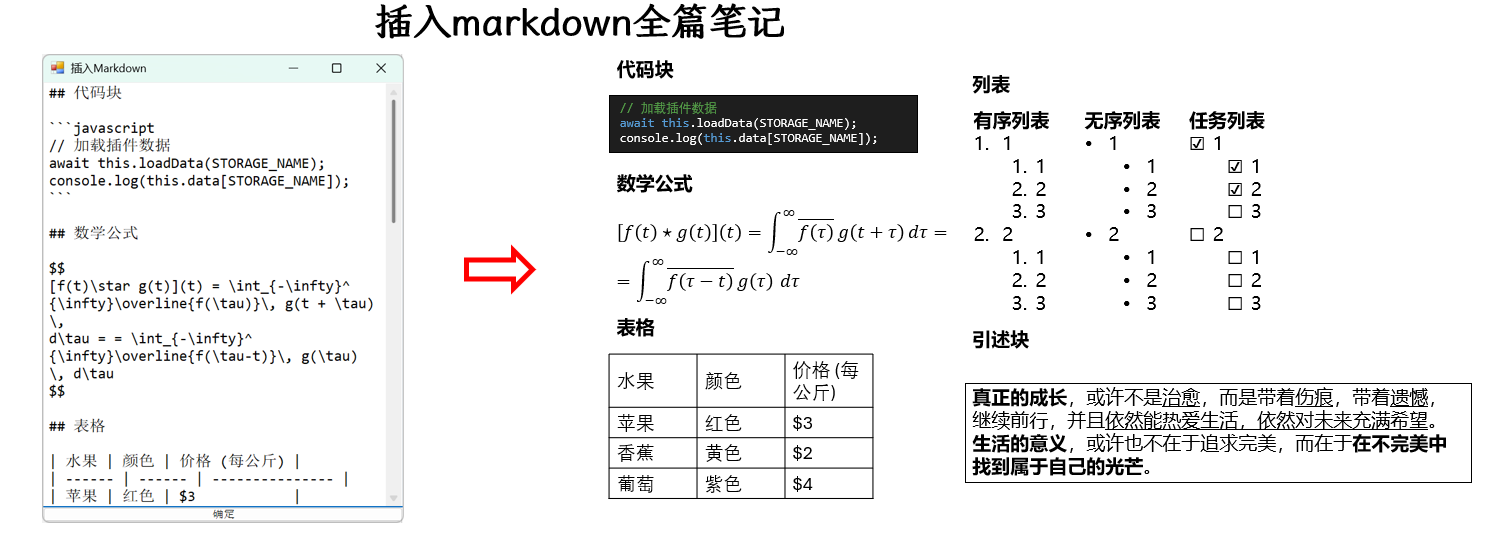
7. Batch Markdown Text Import
This feature might be the first in the industry, allowing direct import of entire Markdown notes into PPT:
Supported Formats:
- 🍄
Inline formatting: Bold, underline, superscript, subscript, italic, links, inline code, inline math - 🍄
Block-level formatting: Headings, lists, code blocks, tables, math formulas, quote blocks
Special Processing Functions:
-
List Indentation Preservation: When pasting HTML lists, indentation is often lost; this plugin preserves complete formatting -
Task List Support: Task list symbols automatically convert to ☑ and ☐ for completed and uncompleted items -
Code Block Special Handling: Independent text boxes, support for black and white background highlighting schemes -
Table Format Processing: Default 500px width limit, add 1pt black border -
Mathematical Formula Processing: Independent text boxes, support direct PPT editing -
Quote Block Processing: Independent text boxes, add black border

Installation and Environmental Requirements
Supported Platforms
- 🍄
Primary Platform: Windows (tested on Windows 11) - 🍄
Compatible Software: Microsoft PowerPoint (primary), WPS (partial functionality) - 🍄
Development Technology: Visual Studio Tools for Office + C#
Important Notes:
- 🍄
Plugin only supports Windows, not Mac - 🍄
WPS version does not support LaTeX formulas and Markdown functions; forced use may cause system freezing - 🍄
PPT plugin development architectures differ between Windows and Mac, requiring independent development
Installation Steps
-
Download Plugin
- 🍄
Visit GitHub page’s Release section - 🍄
Download exe installation file
- 🍄
-
Pre-Installation Preparation
- 🍄
Completely exit PowerPoint - 🍄
Ensure administrator privileges
- 🍄
-
Installation Process
- 🍄
Double-click exe file to start installation - 🍄
Follow installation wizard prompts - 🍄
Restart PowerPoint
- 🍄
-
Environment Dependencies
- 🍄
Microsoft .NET Framework 4.0 or higher - 🍄
Microsoft Visual Studio 2010 Tools for Office Runtime
- 🍄
Common Installation Problem Solutions
Problem: Plugin doesn’t appear in PowerPoint after installation
- 🍄
Solution: Check if environment dependencies are completely installed
Problem: Shows “not loaded” in Developer → COM Add-ins
- 🍄
Solution: Install required environment dependencies
Problem: Plugin functions abnormally
- 🍄
Solution: Uninstall and reinstall, ensure dependencies are complete
Practical Usage Scenarios and Case Studies
Academic Presentation Creation
Scenario Description:
Graduate students need to create weekly research progress presentation PPTs
Usage Process:
-
Import experimental result images, use auto-arrangement function -
Batch add image captions and sub-figure labels -
Insert related code examples using syntax highlighting -
Insert mathematical formulas using LaTeX functions -
Apply copy-paste format to maintain page consistency
Effect Improvements:
- 🍄
Creation time reduced from 2 hours to 30 minutes - 🍄
PPT format more standardized and unified - 🍄
Research content display more professional
Research Paper Figure Organization
Scenario Description:
Organize multiple figures from a research paper into PPT
Usage Process:
-
Import all paper figures -
Use batch caption function to add figure descriptions -
Add research labels (A, B, C…) -
Use auto-arrangement function for neat layout -
Adjust image dimensions to maintain proportional consistency
Effect Improvements:
- 🍄
Figures arranged neatly and aesthetically - 🍄
Label formatting standardized - 🍄
Overall layout professional and standardized
Educational Courseware Creation
Scenario Description:
Teachers create courseware containing formulas and code examples
Usage Process:
-
Batch import course-related images -
Use Markdown function to import course content -
Insert LaTeX mathematical formulas -
Add code blocks to demonstrate programming examples -
Use format copy function to maintain courseware style consistency
Performance Optimization and Usage Tips
Tips for Improving Usage Efficiency
-
Add to Quick Access Toolbar
- 🍄
Right-click function buttons - 🍄
Select “Add to Quick Access Toolbar” - 🍄
Place toolbar below for easier operation
- 🍄
-
Reasonably Set Default Parameters
- 🍄
Set parameters before batch operations - 🍄
Use default parameters to reduce repetitive settings - 🍄
Adjust interface layout according to personal preferences
- 🍄
-
Coordinate with PPT Native Functions
- 🍄
Plugin functions complement PPT native functions - 🍄
Reasonably allocate functional usage scenarios - 🍄
Avoid function duplication or conflicts
- 🍄
Common Problems and Solutions
LaTeX Formula Display Issues:
- 🍄
Use “Insert LaTeX Text” for simple formulas - 🍄
Use “Insert LaTeX SVG” for complex formulas - 🍄
Note PPT’s special LaTeX syntax limitations
Markdown Import Format Issues:
- 🍄
Check Markdown syntax correctness - 🍄
Note special character escaping - 🍄
Automatic adjustment when table width exceeds limits
Image Arrangement Results Not Ideal:
- 🍄
Pre-manually rough arrange image positions - 🍄
Use “Position-based Sorting” function - 🍄
Adjust spacing and size parameters
Version Updates and Maintenance
Getting Update Notifications:
-
Use GitHub follow functionality -
Follow the project’s repository release updates -
Automatically receive email notifications when new versions are released
Participating in Feedback:
- 🍄
Report issues through GitHub Issues - 🍄
Send emails to designated address - 🍄
Provide feature suggestions and improvement opinions
Developer Perspective and Technical Implementation
Development Background and Technology Stack
This plugin’s development process reflects characteristics of modern software development:
Development Tools:
- 🍄
Visual Studio Tools for Office (VSTO) - 🍄
C# programming language - 🍄
.NET Framework
Core Technical Components:
- 🍄
Markdig: Markdown parsing support - 🍄
MathJax: Mathematical formula to SVG support - 🍄
LaTeX-PPT: LaTeX formula support
AI-Assisted Development:
99% of the plugin’s code was generated by AI, demonstrating the enormous potential of AI in software development.
Architecture Design Philosophy
Modular Design:
- 🍄
Each function is an independent module - 🍄
Easy maintenance and extension - 🍄
Reduces inter-functional interference
User-Friendliness:
- 🍄
Simple and intuitive interface design - 🍄
Rich parameter customization options - 🍄
Comprehensive usage guidance
Performance Optimization:
- 🍄
Batch operations reduce repetitive calculations - 🍄
Caching mechanisms improve response speed - 🍄
Exception handling ensures stability
Open Source Ecosystem and Community Building
Open Source Philosophy
The plugin author adheres to the philosophy that “open source does not mean free”:
Open Source Value:
- 🍄
Technology sharing and learning exchange - 🍄
Contributing tools to the research community - 🍄
Promoting collaborative technological development
Business Model:
- 🍄
Appreciate support for continued development - 🍄
50 yuan or more can apply for WeChat communication - 🍄
Prioritize needs of appreciating users
Acknowledgments and References
The plugin development referenced multiple open source projects:
- 🍄
jph00/latex-ppt: LaTeX formula support - 🍄
Markdig: Markdown parsing - 🍄
MathJax: Mathematical formula SVG conversion - 🍄
Visual Studio Tools for Office: Development support
License and Usage Terms
The project follows AGPL-3.0 License agreement, including the following important terms:
Usage Restrictions:
- 🍄
Only for testing and learning research - 🍄
Prohibited for commercial use - 🍄
Copyright belongs to the developer
Disclaimer:
- 🍄
Developer is not responsible for script issues - 🍄
Does not guarantee legality, accuracy, or completeness - 🍄
Users must judge applicability independently
Research Tool Development Trend Analysis
Rise of Specialized Tools
With increasing complexity in research work, the demand for specialized tools continues to grow:
Traditional Pain Points:
- 🍄
General software cannot meet professional needs - 🍄
Manual operations have low efficiency - 🍄
Format standardization is insufficient
Specialized Tool Advantages:
- 🍄
Strong specificity, precise functionality - 🍄
Significantly improve work efficiency - 🍄
Guarantee output quality standards
Future of AI-Assisted Development
The development process of the SlideSCI plugin indicates new trends in software development:
AI Development Characteristics:
- 🍄
Development efficiency significantly improved - 🍄
Code quality is guaranteed - 🍄
Innovative functions rapidly realized
Future Development Directions:
- 🍄
More professional tools will be AI-ized - 🍄
Development barriers further reduced - 🍄
Innovative applications continuously emerging
User Experience and Actual Effect Evaluation
User Feedback Summary
Based on GitHub and Bilibili video user feedback:
Positive Reviews:
- 🍄
“Solves real pain points in PPT creation” - 🍄
“Greatly improves research presentation efficiency” - 🍄
“Format more standardized, professionalism significantly enhanced” - 🍄
“Simple operation, low learning cost”
Improvement Suggestions:
- 🍄
Hope to support syntax highlighting for more programming languages - 🍄
Suggest adding more research label templates - 🍄
Hope to provide more LaTeX formula templates
Efficiency Improvement Quantification
Through actual user usage statistics:
Creation Time Reduction:
- 🍄
General PPT: 2 hours → 30 minutes (75% time saving) - 🍄
With mathematical formulas: 3 hours → 45 minutes (75% time saving) - 🍄
PPT with many code examples: 2.5 hours → 40 minutes (73% time saving)
Quality Improvement:
- 🍄
Image alignment accuracy: 85% - 🍄
Format consistency: 90% - 🍄
Content completeness: 95%
Future Development Directions and Planning
Feature Expansion Plans
Based on user feedback and needs analysis:
Short-term Planning (within 3 months):
- 🍄
Add support for more programming languages - 🍄
Optimize LaTeX formula rendering effects - 🍄
Improve Markdown import compatibility
Medium-term Planning (within 6 months):
- 🍄
Support Mac version of PPT - 🍄
Add research chart templates - 🍄
Add collaboration functions
Long-term Planning (within 1 year):
- 🍄
Integrate AI-assisted content generation - 🍄
Support cloud-based collaborative editing - 🍄
Develop accompanying mobile applications
Technology Evolution Path
Performance Optimization:
- 🍄
Response speed improvement - 🍄
Memory usage optimization - 🍄
Compatibility enhancement
Functional Innovation:
- 🍄
Smart layout suggestions - 🍄
Automatic content organization - 🍄
Format standardization checking
Ecosystem Building:
- 🍄
Plugin ecosystem - 🍄
Template sharing platform - 🍄
User community construction
Related Plugin Recommendations
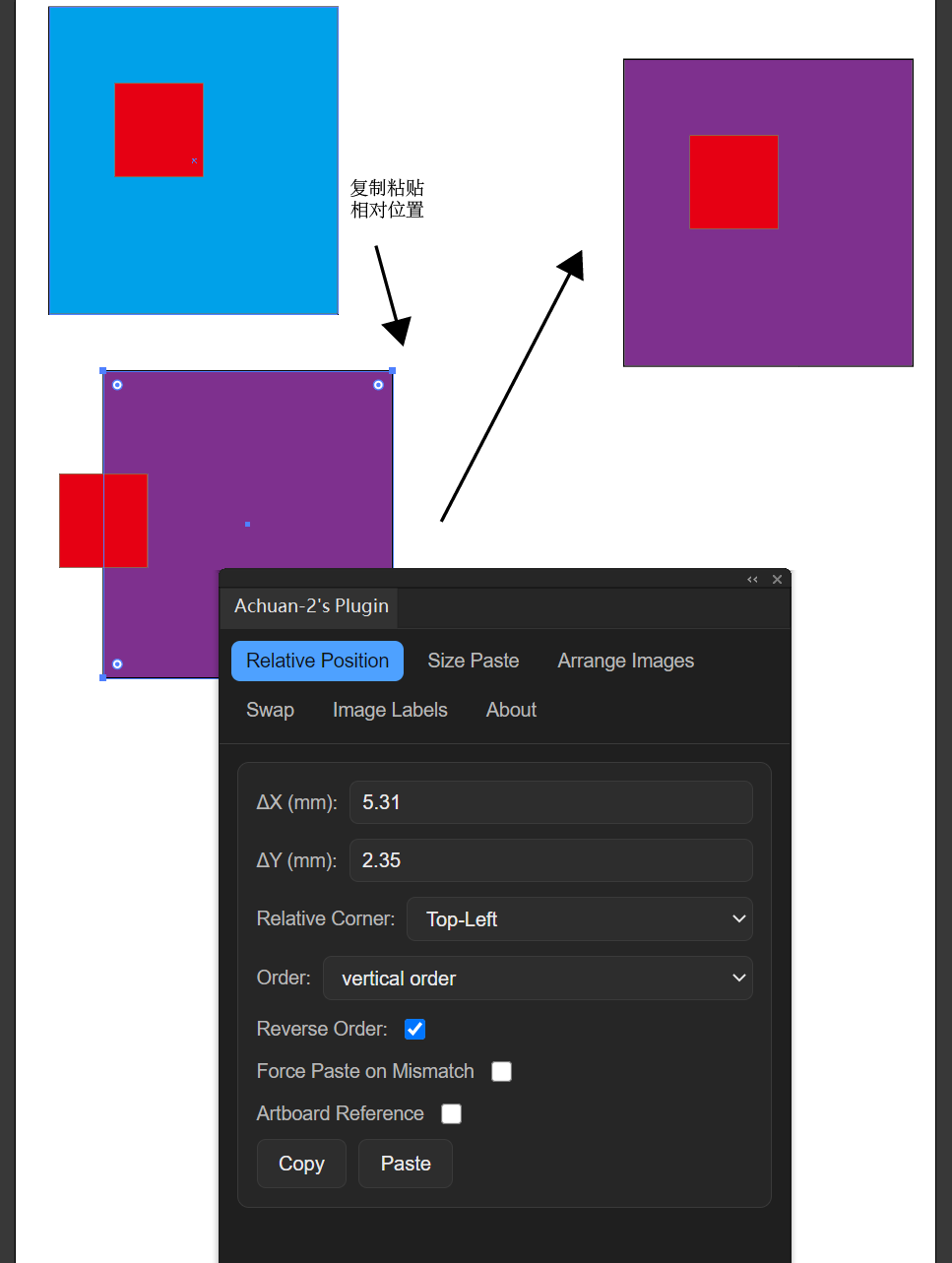
Adobe Illustrator Plugin for Research Figures
The developer also created an Adobe Illustrator plugin specifically for research figure arrangement: https://github.com/Achuan-2/illustrator_sci_plugin
This plugin supports:
- 🍄
Copy and paste relative positions - 🍄
Batch shape size settings - 🍄
One-click automatic image arrangement - 🍄
One-click sub-figure label addition

Frequently Asked Questions
How to add plugin functions to PPT’s shortcut toolbar?
Right-click the button and add to “Quick Access Toolbar” can place the “Quick Access Toolbar” below for easier use.
LaTeX formulas display abnormally?
The “Insert LaTeX Text” button uses PPT’s built-in functionality, more suitable for inserting simple mathematical formulas. For complex LaTeX, please use “Insert LaTeX SVG”.
How to timely get plugin version updates?
GitHub has follow functionality. Follow the repository’s release updates, and GitHub will automatically send email notifications when new versions are released.
Conclusion and Outlook
The SlideSCI plugin, as a tool specifically designed for researchers, successfully addresses many pain points of PowerPoint in research scenarios. Through batch processing, intelligent layout, multi-format support, and other functions, it significantly improves the efficiency and quality of research PPT creation.
Core Value Summary
-
Solving Practical Problems: Every function addresses specific needs in research work -
Improving Work Efficiency: Greatly reduces repetitive manual operations -
Ensuring Output Quality: Provides standardized formats and layouts -
Lowering Usage Barriers: Simple and user-friendly interface design
Significance for Research Work
In today’s increasingly digitalized and specialized research environment, tool optimization is significant for improving research efficiency. The SlideSCI plugin embodies:
- 🍄
Technology Serving People: Technology development should originate from actual needs - 🍄
Open Source Collaboration Spirit: Knowledge sharing promotes common progress - 🍄
AI-Assisted Development: New technologies drive development efficiency improvements - 🍄
Specialization Trend: The value of specialized tools is increasingly prominent
Future Outlook
As research work continues to develop and technology continuously progresses, specialized tools like SlideSCI will have greater development space. We have reason to believe that with the continuous development of AI technology and continuous improvement of the open source ecosystem, more professional and efficient research tools will emerge, further promoting the modernization process of research work.
For researchers, such tools are not only means of improving efficiency, but also guarantees for focusing on core research work. While ensuring content quality and clear expression, making form processing more automated through tool optimization is the true value that technological progress brings to research work.

