

How to Completely Uninstall OpenClaw (Step-by-Step Guide)
Snippet
To completely uninstall OpenClaw, you must run openclaw uninstall to remove its working directory, then remove the global package using npm rm -g openclaw (or the equivalent pnpm / bun command). If you encounter permission errors, prepend the command with sudo. :contentReference[oaicite:0]{index=0}
Why OpenClaw Requires a Two-Step Uninstall
If you tried OpenClaw and decided it’s not for you, you may assume that removing it is as simple as deleting a folder or running a single command. That is not the case.
OpenClaw is installed as a global npm package, and during usage it also creates a working directory on your system.
A complete removal therefore requires:
-
Removing OpenClaw’s internal working directory -
Removing the globally installed package
Skipping either step leaves residual components on your machine.
Overview: Complete OpenClaw Removal Workflow
| Step | Purpose | Required |
|---|---|---|
Run openclaw uninstall |
Deletes OpenClaw working directory | Yes |
| Remove global package | Removes CLI command & global module | Yes |
Both steps must be completed.
Step 1: Remove the OpenClaw Working Directory
1. Open your terminal
Run:
openclaw uninstall
This triggers OpenClaw’s built-in uninstall process.
2. Select all items
The interface is interactive:
-
Use the arrow keys to move -
Press Space to select all options -
Press Enter to confirm
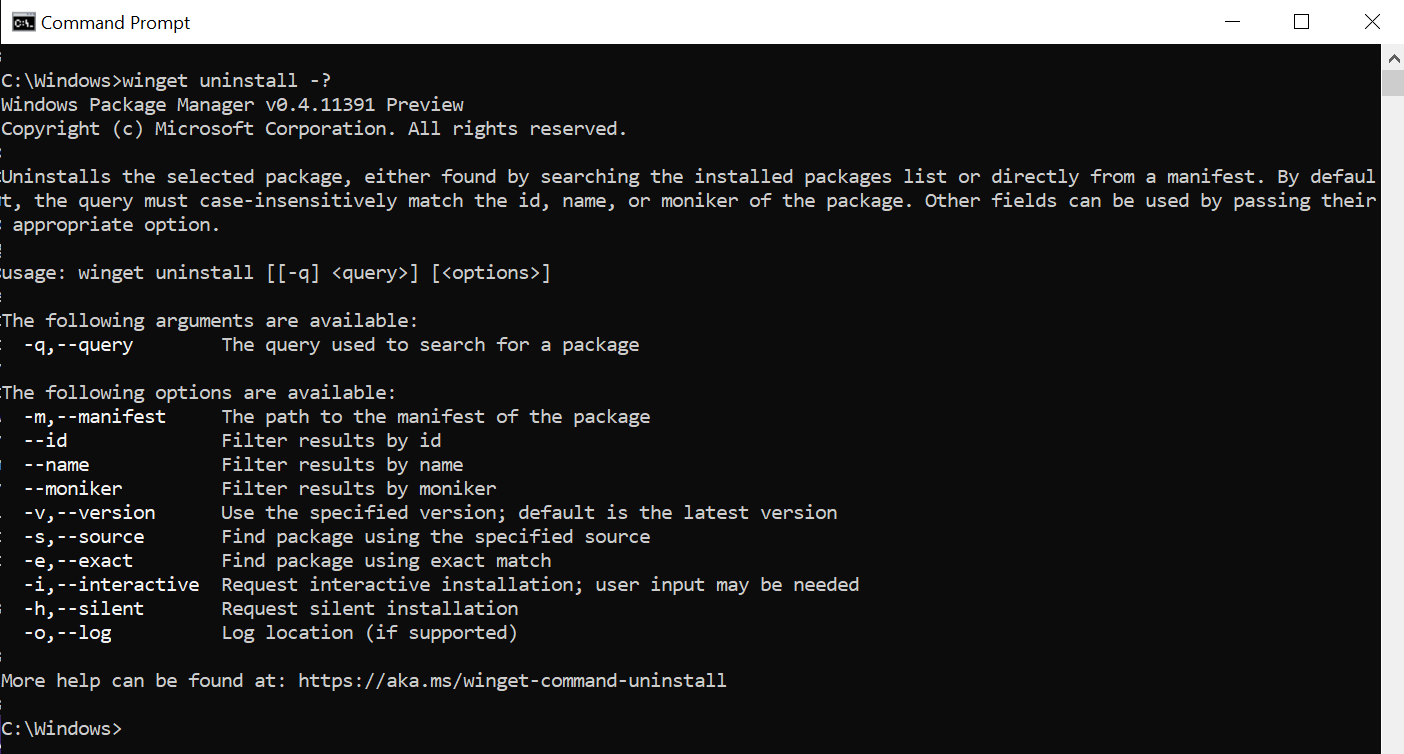
Illustrative example:





3. Confirm deletion
You will be prompted to confirm.
-
Select yes -
Press Enter
This command automatically deletes the OpenClaw working directory.
This completes the internal cleanup phase.
Step 2: Remove the Global OpenClaw Package
After the internal uninstall, you must remove the globally installed package.
The command depends on how you installed OpenClaw.
If installed with npm:
npm rm -g openclaw
If installed with pnpm:
pnpm remove -g openclaw
If installed with bun:
bun remove -g openclaw
This removes:
-
The global CLI command -
The package from global node_modules
What If You See a Permission Error?
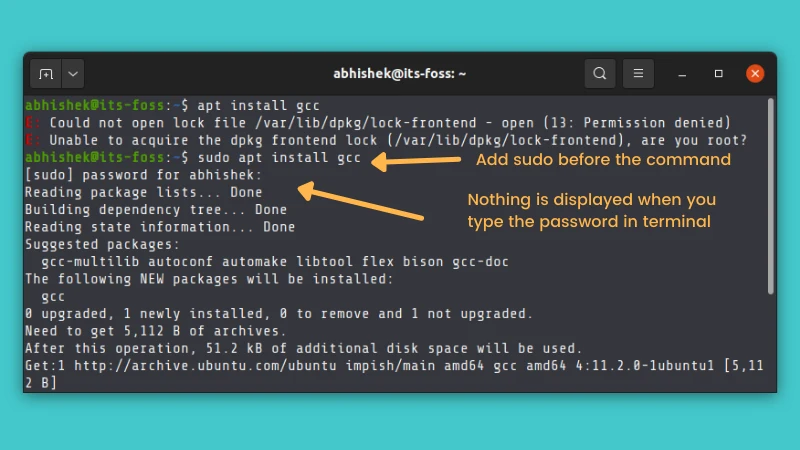
If you encounter a permission-related error during removal, the issue is insufficient privileges to modify global packages.
Solution:
Prefix the command with sudo.
Example:
sudo npm rm -g openclaw
Then:
-
Enter your system password -
Press Enter -
The uninstall will complete successfully
Example scenario:


Frequently Asked Questions
Can I only run npm rm -g openclaw?
No.
That removes the global package, but does not delete the working directory created by OpenClaw.
You must run:
openclaw uninstall
first.
Can I manually delete the folder instead of running uninstall?
Not recommended.
openclaw uninstall executes the official internal cleanup process. Manual deletion may leave residual files.
Can I just tell OpenClaw to uninstall itself completely?
No.
Because OpenClaw is installed as a global npm package, removal must also be handled by the package manager. The internal uninstall does not remove the global package entry.
Complete Uninstall Checklist
Before considering the removal complete, confirm all of the following:
-
[ ] Executed openclaw uninstall -
[ ] Selected all options -
[ ] Confirmed “yes” -
[ ] Executed npm / pnpm / bun global removal command
When all items are completed, OpenClaw is fully removed.
How-To: Fully Remove OpenClaw
Step 1
openclaw uninstall
Step 2
-
Select all items (Space) -
Press Enter -
Confirm “yes”
Step 3
Run one of:
npm rm -g openclaw
pnpm remove -g openclaw
bun remove -g openclaw
Step 4 (If needed)
sudo npm rm -g openclaw
Final Conclusion
OpenClaw removal requires two independent actions:
-
Internal uninstall (working directory cleanup) -
Global package removal
Both are mandatory.
Following this exact sequence ensures a clean and complete uninstall, with no residual files or global command remnants left on your system.

