

Chrome 146 Now Lets AI Agents Control Your Browser: Complete Setup Guide and Expert Tips
Google’s latest Chrome 146 release introduces a significant shift in how artificial intelligence can interact with your browser. The update enables AI agents to directly control Chrome through official developer interfaces, opening possibilities for automated web tasks that previously required complex workarounds.
This feature allows AI assistants to understand webpage content and perform actions like filling forms, booking tickets, extracting data, and navigating across multiple sites – just as a human would. The system builds on Chrome’s existing developer tools protocol and the Model Context Protocol (MCP), creating a standardized way for AI to interact with your browser.


The Challenges Before Chrome 146
Before this update, enabling AI to control a browser typically meant using automation tools like Puppeteer or Selenium. These frameworks, while powerful, came with significant limitations:
High technical barriers – Developers needed to write complex startup scripts, configure headless browser environments, and carefully mask browser fingerprints. Websites with anti-bot protections would frequently block these automated attempts, leading to frustrating debugging sessions.
Login state problems – Automated tools couldn’t easily reuse your existing logged-in sessions. For websites requiring authentication – such as messaging platforms, internal company systems, or financial dashboards – this meant repeated logins or complicated cookie management scripts.
Unreliable debugging – Error messages were often cryptic, especially when dealing with dynamically loaded content or nested iframes. Scripts that worked perfectly one day would break the next after website updates.
Performance overhead – Puppeteer and similar tools are resource-intensive. Running multiple automation instances simultaneously could significantly slow down your computer.
In essence, earlier approaches treated browser automation as something to be done secretly, working around website defenses. Chrome 146 takes a different path by creating an official, transparent channel for AI interaction.
What Chrome 146 Changes
The new version enhances Chrome’s remote debugging capabilities and explicitly embraces the MCP protocol. By enabling a simple toggle, any AI agent that supports these standards can connect directly to your browser instance. The AI gains access to the visible DOM tree and can call upon native browser functions.
Most significantly, the AI can work with your existing logged-in sessions. It inherits your cookies and authentication state, allowing it to navigate websites as if you were doing it yourself. This eliminates the need for repeated logins and makes the AI’s actions indistinguishable from normal user behavior.
This official approach transforms the paradigm of AI-browser interaction. Instead of simulating environments, the AI uses your actual browsing environment. This reduces development complexity while increasing success rates for automated tasks.
Step-by-Step Configuration Guide
Enabling this functionality requires just a few minutes. Here’s how to set it up.
Step One: Access the Remote Debugging Page
First, ensure Chrome is updated to version 146 or higher. Type the following address in your address bar and press Enter:
chrome://inspect/#remote-debugging
You’ll see a page similar to developer tools. Make sure the left menu has Remote debugging selected.

Step Two: Enable Remote Debugging
Look for the main toggle on the right side of the screen:
“
☑️ Allow remote debugging for this browser instance
Check this box. The page will display a warning explaining that external applications can now request full control over your browser. This includes access to saved data, cookies, website information, and the ability to navigate to any URL. Google provides this disclaimer to ensure you understand the privacy implications.

Step Three: Connect Your AI Agent
After enabling the toggle, a local address appears at the bottom of the page, typically 127.0.0.1:9222. This indicates that your browser has opened a debugging port ready to accept connections from external agents.
The next step involves connecting your AI assistant to this port. The most straightforward method would be using Google’s official chrome-devtools-mcp package. However, early adopters have identified two significant issues with the official approach:
-
Frequent pop-up prompts – The official package creates a new debugging connection for each instruction, triggering repeated Chrome security warnings. This quickly becomes annoying during extended use.
-
Performance problems with many tabs – When you have dozens of tabs open, the official package’s underlying Puppeteer implementation often times out while trying to locate the correct target, causing frustrating failures.
Step Four: The Community Alternative – chrome-cdp-skill
To address these limitations, the developer community recommends using chrome-cdp-skill, a tool that connects directly through WebSocket. It communicates via the Chrome DevTools Protocol (CDP) and requires only one authorization per tab. After that initial approval, all subsequent operations happen silently without pop-up interruptions.
This alternative completely avoids Puppeteer, instead using Node.js 22+’s native WebSocket API. The result is a much lighter footprint that performs well even with hundreds of tabs open.
The original project supported only Mac and Linux. A community contributor (including the author of this article) has added Windows compatibility and submitted a pull request. While waiting for official merging, you can use these installation commands:
For Mac and Linux users (original source):
npx skills add https://github.com/pasky/chrome-cdp-skill -g --all --copy
For Windows users (adapted version):
npx skills add https://github.com/hanyu0001/chrome-cdp-skill -g --all --copy
After successful installation, your AI agent – whether Claude Code, Codex, Antigravity, or another compatible tool – can establish a persistent connection with your browser for efficient control.
Step Five: Experience AI Browser Control
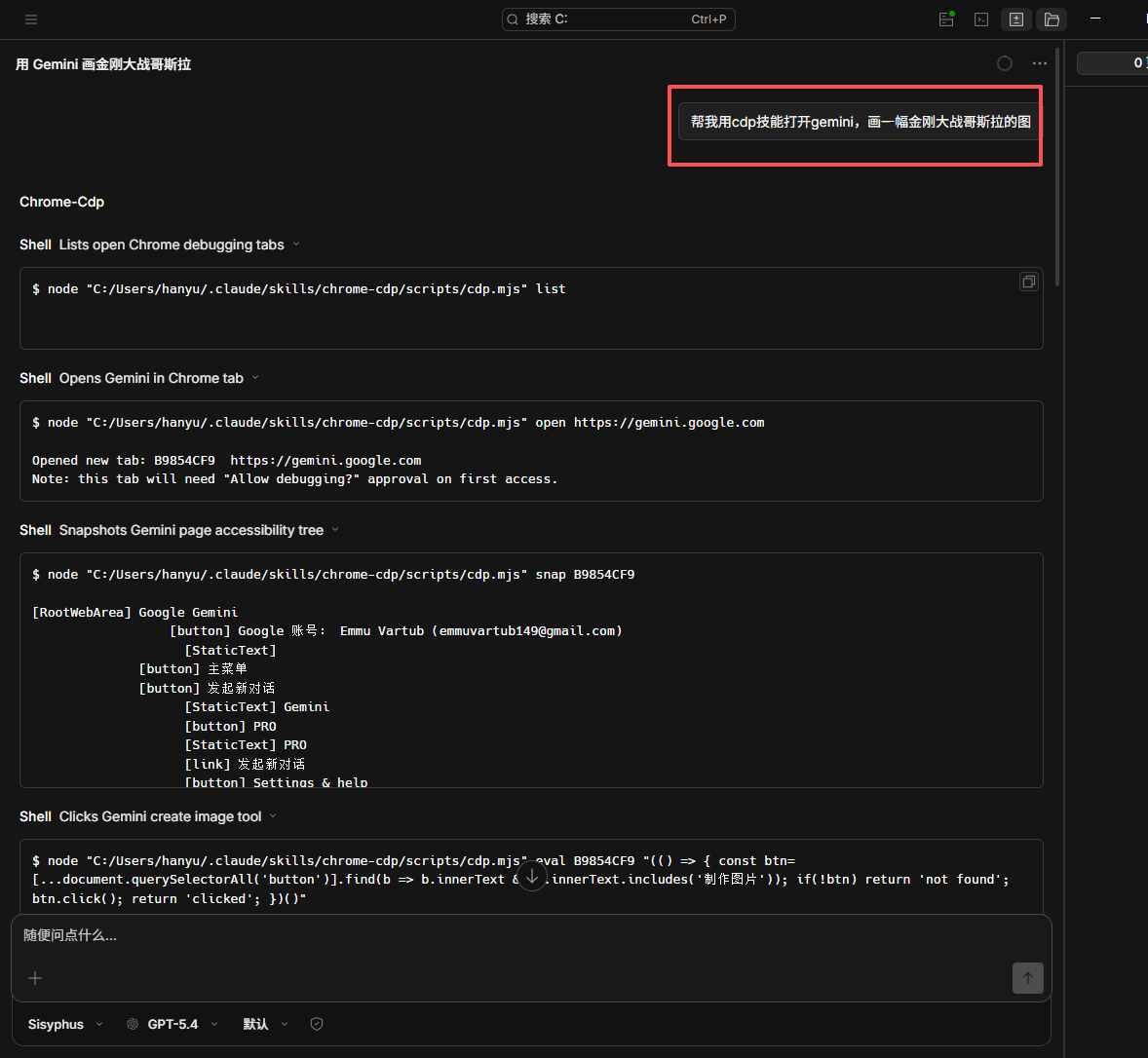
Once connected, you can issue natural language commands through your AI assistant’s chat interface. For example:
“
“Open Gemini and generate an image of Godzilla fighting King Kong”
The AI will automatically navigate to the appropriate website, locate the image generation function, and execute your request. All of this happens in the background without stealing your mouse focus. You can continue working on other tasks while your AI handles web browsing for you.


How the Technology Works
Two key protocols enable this functionality: the Chrome DevTools Protocol (CDP) and the Model Context Protocol (MCP).
CDP (Chrome DevTools Protocol) was originally designed for developers debugging web pages. It allows external tools to connect via WebSocket, access DOM structure, listen to events, execute JavaScript, and simulate user input. Chrome now officially permits AI agents to use this same interface.
MCP (Model Context Protocol) provides a higher-level abstraction that helps AI understand webpage semantics. Rather than simply clicking at coordinates, the AI can recognize elements like login forms or search buttons based on their context and purpose.
Because the AI works through your existing browser session, it automatically uses your logged-in cookies and authentication state. This means it can access any website you’re already signed into, without additional login steps. It also means you should only authorize trusted AI agents to connect.
Comparison: Traditional vs. New Approach
| Aspect | Traditional (Puppeteer/Selenium) | Chrome 146 with MCP |
|---|---|---|
| Setup | Requires scripting and fingerprint masking | No configuration needed, uses real browser |
| Login state | Manual cookie handling or repeated logins | Automatically inherits existing sessions |
| Anti-bot risk | High, easily detected and blocked | Low, actions come from real user environment |
| Visibility | Usually headless, hard to observe | Visual, you can watch operations happen |
| Performance | Heavy, depends on Puppeteer | Lightweight, direct WebSocket connection |
| Pop-up issues | None | Official package has them, alternatives don’t |
Frequently Asked Questions
Q1: Does enabling remote debugging risk my privacy?
A1: Yes, any application connected to the debugging port can access your browser data, including cookies, saved passwords, and browsing history. Only authorize trusted AI agents, and disable the feature when not needed. The default listening address is 127.0.0.1, which only allows local connections and provides reasonable security.
Q2: Do I need to open this page every time?
A2: Currently yes. You can also launch Chrome from the command line with the --remote-debugging-port=9222 flag to enable debugging automatically, but this keeps the port open continuously and requires attention to security.
Q3: Which AI agents work with this feature?
A3: Any agent implementing the MCP protocol or able to use CDP directly should work. Examples include Claude Code, Codex, and Antigravity. As the protocol gains adoption, more AI assistants will likely add support.
Q4: Why does the official package keep popping up dialogs?
A4: The official package creates a new debugging connection for each instruction, causing Chrome to repeatedly ask for permission. Using chrome-cdp-skill establishes a persistent connection that requires only one initial authorization.
Q5: Can I use this on mobile?
A5: Chrome for Android does not currently support remote debugging. This feature is desktop-only for now.
Q6: What if connection attempts fail?
A6: First verify Chrome is version 146 or higher and that you’ve checked “Allow remote debugging.” For chrome-cdp-skill, ensure Node.js is version 22 or newer. Firewalls might block port 9222 – you can temporarily disable them or add an exception.
Q7: Will this slow down my normal browsing?
A7: No. The AI communicates through a separate WebSocket connection that has minimal impact on foreground performance. You can browse normally while the AI works in the background.
Q8: How do I target a specific tab among many?
A8: When connecting with chrome-cdp-skill, it lists all available tabs for you to select. Subsequent commands will target that specific tab, giving you precise control.
Security Considerations
This feature offers significant capabilities, but security deserves careful attention:
Enable only when needed – Turn on remote debugging only during AI agent sessions, and disable it immediately afterward.
Keep connections local – The default 127.0.0.1 binding ensures only programs on your computer can connect. Never change this to 0.0.0.0 or expose it to the internet.
Choose trusted agents – Use open-source tools you can audit, or well-established commercial products. Avoid unknown software that might misuse its access.
Clear sessions after use – For sensitive websites, log out manually or clear cookies after your AI finishes its tasks.
Practical Applications
Form automation – Let AI handle lengthy registration forms, surveys, or applications, including file uploads.
Cross-site data collection – Have AI gather product prices from multiple e-commerce sites and compile them into organized tables.
Scheduled tasks – Combine with system scheduling to have AI perform timed actions like grabbing limited items or completing attendance check-ins.
Testing assistance – Developers can use this for quick UI testing without writing dedicated automation scripts.
Looking Forward
Chrome 146’s update represents a transition from browsers as viewing tools to browsers as execution platforms for AI. In the near future, we may delegate many routine online tasks to AI assistants rather than performing them ourselves. Whether filling spreadsheets, comparing prices across sites, or securing time-sensitive purchases, these activities could become automated.
As with any powerful capability, this shift brings both opportunities and responsibilities. Understanding how to configure and control these features will become increasingly valuable for anyone who spends significant time online.
If you’re ready to experience browser automation that feels like having a digital assistant handle your web tasks, follow the steps in this guide. The setup takes minutes, and the possibilities are extensive. Share your experiences and use cases – they help the community understand how this technology can best serve our daily digital lives.

