

Turn Your Old Android Phone into a 24/7 AI Agent: A Complete Guide to Running OpenClaw on Mobile
Central question this article answers: How can you deploy a fully functional OpenClaw AI assistant without buying a Mac Mini or paying for cloud servers, using only a spare Android phone you already own?
The short answer: Install BotDrop to run OpenClaw on Android, obtain root access to break through system sandbox limitations, and gain a persistent, always-on AI node capable of controlling your entire phone. The entire setup takes roughly two hours, requires zero coding, and costs nothing if you have an unused device lying around.
Why Traditional Deployment Options Create Unnecessary Barriers
Core question addressed: Why do so many people interested in OpenClaw never actually get to use it?
The barrier is hardware. Standard OpenClaw deployment requires a macOS host machine running continuously. For anyone without a Mac Mini or unwilling to keep their primary laptop powered on indefinitely, this means either purchasing additional hardware (used Mac Minis typically cost several hundred dollars) or renting macOS cloud instances at premium hourly rates.
When ClawBot gained traction in developer communities recently, I found myself in exactly this position. My Mac Mini had already been sold, and my main laptop could not reasonably stay awake around the clock. Watching others share automation workflows while being locked out due to hardware constraints created genuine frustration. Many technically capable readers have likely experienced similar exclusion.
Then I discovered BotDrop. The project ports OpenClaw to Android in a way that requires no flashing, no development environment setup, and no complex configuration—install the APK and run. The unused OnePlus 10R sitting in my drawer suddenly had purpose again.
Phase One: Rapid BotDrop Deployment
Core question addressed: How quickly can you get OpenClaw running on an Android phone with basic functionality?
Prerequisites
You will need:
-
An Android phone (this guide uses a OnePlus 10R; theoretically any device running Android 8.0 or higher) -
Stable Wi-Fi connectivity -
A Telegram account for bot interaction
Installation and Initialization
BotDrop’s installation process prioritizes accessibility. Most users complete setup within minutes:
Step 1: Install BotDrop
Download and install the BotDrop APK from official distribution channels. Upon first launch, the application presents a streamlined initialization interface. It automatically detects system specifications and configures necessary runtime parameters without manual intervention.
Step 2: Connect Telegram
BotDrop leverages Telegram bots for user interaction, eliminating the need for custom web interfaces, domain registration, or SSL certificate management. Within the application, enter your Telegram Bot Token (created free via @BotFather) and complete the binding process.
Step 3: Verify Connectivity
Open Telegram, locate your newly bound bot, and send a test message. A functional setup yields immediate response from OpenClaw. At this stage, you possess an AI assistant running on Android hardware, permanently online, accessible from anywhere with internet connectivity.
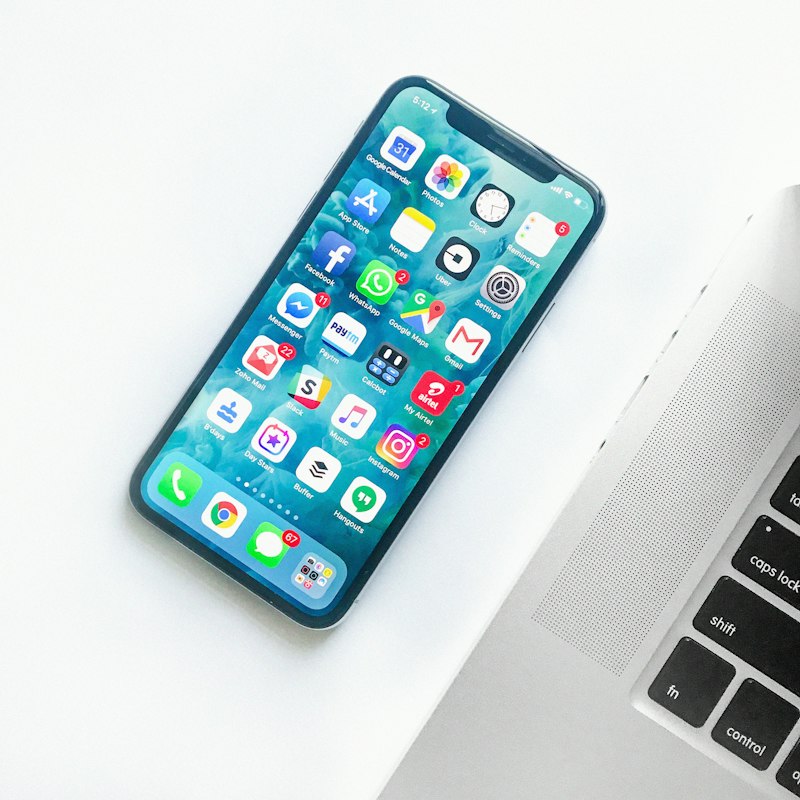
Image source: Unsplash

Understanding the Sandbox Limitation
Your AI assistant now handles standard tasks effectively: answering questions, analyzing text, generating content, and invoking predefined tools. However, a fundamental constraint persists—application sandbox isolation.
Android’s security architecture confines each application to its own isolated environment. OpenClaw running within BotDrop accesses only its designated data partition. It cannot view other applications’ content, capture screenshots, or interact with system-level functions. When asked to “check my latest email,” it responds honestly: “I do not have permission to access your Gmail.”
The analogy is apt: you have hired a knowledgeable assistant and locked them in a windowless, doorless room. They can think and converse but cannot interact with the external world. For users seeking genuine mobile automation, this limitation proves unacceptable.
Phase Two: Obtaining Root Access and System Integration
Core question addressed: How do you break Android’s application sandbox to grant your AI assistant full phone control?
The solution involves obtaining root privileges and establishing a communication channel from OpenClaw to the system layer. While this sounds technically demanding, AI tools can execute the majority of the work.
Vibe Rooting: Delegating Technical Execution to AI
I regularly use Claude Code for development assistance. This time, I made an ambitious request: “Help me root this phone.”
Claude Code connected via SSH (BotDrop includes SSH service by default) and initiated autonomous operation:
Research Phase
Claude first gathered device specifics: OnePlus 10R model number (CPH2411), current Android version, and security patch level. Based on this data, it researched compatible rooting approaches. For OnePlus devices, the standard path involves Magisk: download official firmware, extract the boot image, patch it, and flash the modified image.
Execution and Problem Resolution
Practical implementation encountered typical obstacles:
-
Official firmware packages resided on regional OnePlus servers with geographic access restrictions -
Initial flashing of the patched boot image triggered a fastboot loop -
Specific Magisk versions showed kernel compatibility issues requiring version downgrade
Claude logged each error, analyzed system logs, and adjusted tactics. My actual involvement consisted of: plugging and unplugging cables, tapping “Allow” on phone prompts when requested, and switching to a higher-quality USB cable (inferior cables cause a surprising percentage of flashing failures).
No code was written. No tutorial pages were studied. No forum threads were mined for solutions. Approximately forty minutes later, the phone had root access with Magisk Manager displaying successful installation.
Author’s Reflection: The Democratization of Hardware Modification
This experience revealed how technical implementation barriers are fundamentally shifting. Traditional phone rooting required:
-
Reading extensive forum threads on XDA Developers -
Understanding bootloader, recovery, and fastboot concepts -
Manual command execution and error interpretation -
Accepting brick risks and preparing recovery procedures
Today, AI absorbs the cognitive load and trial-and-error costs. Humans provide physical interface (cables) and permission grants (screen taps). This represents not AI replacement of humans, but AI democratization of expert knowledge—enabling ordinary users to accomplish tasks previously requiring enthusiast-level expertise.
Resolving Proot Isolation: Establishing Root Privilege Channels
Root access alone does not immediately solve the problem. BotDrop runs within a proot isolated environment for stability. Even with a rooted phone, OpenClaw inside BotDrop cannot directly invoke su commands.
Claude proposed an architectural solution running a lightweight proxy service at the system level:
-
Launch a local HTTP service in the Android system background, listening on a specific port (such as localhost:8080) -
This service executes with root privileges, receiving commands from BotDrop and performing system operations -
OpenClaw inside BotDrop communicates via standard HTTP requests to this local service
This design maintains BotDrop’s operational stability while opening root privilege access. After configuration, OpenClaw executes root-requiring operations through simple HTTP API calls.
Phase Three: AI-to-AI Direct Connection and Protocol Engineering
Core question addressed: How can the phone-based OpenClaw collaborate efficiently with desktop AI assistants without human message relay?
From Manual Relay to Automated Handshake
During the rooting process, an interesting collaboration pattern emerged. Claude Code on Mac needed frequent information exchange with BotDrop on the phone—querying system status, executing commands, verifying results. Initially, I manually copied and pasted between both interfaces, creating inefficiency and error potential.
Community input provided the obvious solution: “BotDrop has SSH. Have your Mac AI log in directly and talk to it.”
Indeed. Claude Code already connected via SSH, while BotDrop’s OpenClaw exposed a local Gateway service. Theoretically, Claude could call OpenClaw’s API directly, enabling autonomous machine-to-machine communication.
Protocol Reverse Engineering and Implementation
Claude analyzed OpenClaw’s local communication protocol:
-
Port scanning confirmed Gateway service operation on localhost:3456 -
Traffic capture revealed JSON-RPC based custom protocol structure -
Critical interfaces were reverse engineered: message sending, status retrieval, tool execution invocation
After several adjustment iterations, successful connection occurred:
Claude Code on Mac: “Try
su -c idand report the result”BotDrop on Phone (Orb): “Root access confirmed. uid=0(root), Magisk authorization functioning.”
Two AI nodes established direct communication. This enables:
-
Desktop AI dispatching specific tasks to mobile AI -
Mobile AI returning execution results in real-time -
Complex task decomposition across both nodes for parallel processing
Application Scenario: Cross-Device Workflow Automation
Consider processing text from multiple phone screenshots:
-
Desktop AI handles: batch OCR recognition, information extraction, formatting -
Mobile AI handles: automated screenshot capture, image cropping, delivery via messaging apps to designated contacts -
Coordinated execution: Desktop analysis completion triggers mobile sending without human intermediation
Phase Four: Full Phone Control and Automation in Practice
Core question addressed: With root access and AI interconnection established, what practically useful tasks can mobile OpenClaw accomplish?
Core Technical Capabilities
The combination of root privileges, screen control, and AI comprehension creates unprecedented possibilities:
1. Screen Perception and UI Comprehension
Using screencap commands, OpenClaw “sees” phone displays. Combined with visual understanding, it identifies current applications, locates buttons and input fields, and reads on-screen text.
2. Simulated User Interaction
Through input tap, input swipe, and input text commands, OpenClaw simulates touch operations—tapping, swiping, typing—interacting with any application like a human user.
3. System-Level Information Access
Notification content reading, current application enumeration, system status queries, and filesystem operations all become accessible.
Practical Case Study: Automated Social Media Posting
My first complete test scenario: “Post a tweet for me on X.” The execution flow:
Decomposed Steps
-
Intent Parsing: OpenClaw interprets the natural language command, confirming the goal (post to X) and provided content -
Application Launch: Executes am start -n com.twitter.android/com.twitter.android.StartActivityto open X -
Interface Verification: Captures and analyzes screenshot, confirming main interface load and locating the “New Tweet” button -
Simulated Interaction: Calculates button coordinates, executes tap, enters composition interface -
Content Input: Taps text field, inputs prepared content -
Publication Confirmation: Screenshots to verify content accuracy, locates and taps “Post” button -
Result Reporting: Captures confirmation screenshot, replies via Telegram: “Posted successfully.”
Image source: Unsplash


Throughout this process, I sent one natural language command via Telegram. All subsequent actions executed autonomously. Unlike traditional script automation, no pre-written XPath or coordinate scripts were required—AI dynamically adapted to interface changes through visual understanding.
High-Value Application Scenarios
With infrastructure established, exploration possibilities expand significantly:
24/7 Monitoring and Response
-
3 AM ticket purchasing or limited-item purchasing automation -
Monitoring specific application notifications for critical alerts requiring immediate action -
Automatic message response during sleep hours with urgency assessment for human wake-up decisions
Mobile-Exclusive Ecosystem Automation
-
Operating LINE, WhatsApp, and other mobile-only communication platforms -
Automatic food delivery app coupon collection and order tracking -
Ride-hailing application automation for booking and trip sharing
Cross-Platform Collaborative Workflows
-
Desktop document completion triggering automatic mobile distribution to work groups -
Mobile receipt of verification codes with automatic extraction and desktop form population -
Meeting attendance with automatic courier call answering and message recording
Author’s Reflection: The Unique Position of Mobile AI Agents
Desktop AI assistants offer mature solutions, but mobile agents possess irreplaceable advantages:
-
Identity Centrality: Phones serve as core personal digital identity carriers, hosting social relationships, payment authentication, and communication records. AI access to phone data reaches dimensions unavailable on desktop.
-
Ambient Presence: Phones remain physically present 24/7, truly “always-on.” Desktop AI requires users to be seated at computers; mobile AI responds from any context.
-
Ecosystem Exclusivity: Modern life services (food delivery, transportation, mobile payments, short-form video social) have become mobile-only, often lacking web interfaces. Automating these flows requires phone control.
Recent “AI phone” concepts generated significant attention, promoting “deep AI integration.” Yet through BotDrop, similar capabilities are achievable today with spare hardware—no new device purchases, no phone replacements required. A drawer-bound Android device plus two hours of configuration equals a fully functional AI agent node.
Complete Implementation Roadmap
Core question addressed: What are the concrete steps and time investment for building this system from scratch?
| Phase | Key Tasks | Time Estimate | Technical Notes |
|---|---|---|---|
| Environment Preparation | Download BotDrop, create Telegram Bot | 10 minutes | Requires Android 8.0+, enable developer options |
| Basic Deployment | Install, bind, verify connectivity | 5 minutes | Ensure stable network, record Bot Token |
| Root Acquisition | Unlock bootloader, flash Magisk | 60-90 minutes | Backup data required, use quality USB cable |
| Privilege Bridge | Configure root proxy service | 20 minutes | Setup local port forwarding, test su invocation |
| AI Interconnection | Reverse protocol, establish direct link | 30 minutes | Analyze Gateway interfaces, debug JSON-RPC |
| Capability Verification | Test screen control, app operation | 15 minutes | Start with simple commands, increase complexity |
Total Time Investment: Approximately 2-2.5 hours
Hardware and Cost Breakdown
| Component | Description | Cost |
|---|---|---|
| Android Phone | Android 8.0+, 6GB+ RAM recommended | Spare device, $0 |
| BotDrop Application | Official free distribution | $0 |
| Telegram | Free messaging platform | $0 |
| Magisk | Open-source rooting solution | $0 |
| USB Cable | Recommend OEM or high-quality alternative | $0-10 |
Author’s Reflection: The Trend Toward Zero-Cost AI Infrastructure
This solution’s cost structure proves most compelling. Previously, acquiring a 24/7 AI agent capable of complex operations required:
-
Cloud servers: Minimum VPS approximately $7-15/month, incapable of mobile ecosystem control -
Mac Mini: Used hardware $300-500, electricity costs additional -
Commercial automation services: Browserless, Puppeteer hosting, usage-based billing
The spare phone approach achieves near-zero marginal cost. Old hardware already sits unused. Power consumption is negligible (Android standby typically draws under 1 watt). All software tools are open-source or free. This “zero-cost entry” characteristic dramatically lowers barriers for individual developers exploring AI agents.
Practical Summary and Action Checklist
For immediate implementation, condensed action items follow:
Pre-Flight Checks
-
[ ] Locate spare Android phone, verify power-on and network connectivity -
[ ] Confirm phone model and Android version, research rooting feasibility for specific model -
[ ] Backup phone data (rooting typically wipes storage) -
[ ] Prepare Telegram account, create new bot via @BotFather and obtain Token
Quick Start
-
[ ] Install BotDrop APK, complete initialization wizard -
[ ] Enter Telegram Bot Token in application, test message sending/receiving -
[ ] Enable BotDrop SSH service, record connection address and port
Rooting and Privileges (AI-assisted recommended)
-
[ ] Connect to phone via SSH using Claude Code or similar tool -
[ ] Have AI research rooting approach for specific model, download necessary firmware -
[ ] Follow AI guidance for bootloader unlocking and Magisk flashing -
[ ] Configure root proxy service, verify OpenClaw can successfully execute su commands
Capability Validation
-
[ ] Test basic command: “Screenshot and describe current interface” -
[ ] Test app operation: “Open [specific app] and tell me what application this is” -
[ ] Test complete workflow: “Help me perform [specific action] in [specific app]”
One-Page Overview
Solution Essence: Run OpenClaw on Android via BotDrop, obtain root access to break sandbox limitations, and enable AI to visually perceive screens and simulate touch operations—creating a persistent, always-on intelligent node capable of automating any mobile application.
Core Advantages:
-
Zero Hardware Cost: Utilizes spare devices, no Mac Mini or cloud servers required -
Complete Ecosystem Coverage: Operates mobile-only applications (delivery, transportation, social, payments) -
24/7 Availability: Phones naturally suit continuous standby operation with instant response capability -
AI-Native Interaction: Natural language commands without script programming
Key Requirements:
-
Root access acquisition (moderate technical complexity, AI-assistable) -
Physical interaction capability (cable connection, screen tap authorization)
Optimal Audience:
-
Developers seeking OpenClaw experience without Mac Mini investment -
Individual users with automation needs (ticketing, monitoring, message handling) -
Early explorers interested in mobile AI agent applications
Frequently Asked Questions
Q1: Which Android phone models work for this approach?
Theoretically any device running Android 8.0+ with unlockable bootloader. OnePlus, Google Pixel, and Xiaomi devices typically have more mature rooting solutions. Critical factor is confirming reliable Magisk support exists for your specific model.
Q2: Does rooting void warranty? Create security risks?
Bootloader unlocking and rooting typically void manufacturer warranty (some vendors like OnePlus are more permissive). Security-wise, Magisk uses “systemless” modification and can hide root status (Magisk Hide/Zygisk). Use spare devices rather than primary phones for initial experimentation.
Q3: How does BotDrop differ from official OpenClaw?
BotDrop represents an Android port of OpenClaw with identical core functionality but restricted runtime environment (proot isolation). Root + proxy solutions overcome these restrictions, delivering near-native OpenClaw experience.
Q4: Can non-programmers complete this setup?
Yes. The author wrote zero code throughout the process. Primary operations involved plugging cables, granting permissions, and switching USB cables. Technical execution was handled by Claude Code. Basic logical reasoning (evaluating whether AI instructions make sense) suffices; programming skills are unnecessary.
Q5: Will banking apps detect root after installation?
Magisk provides root hiding capabilities (Shamiko module or Magisk Hide) to conceal root status from specific applications. However, financial app detection mechanisms continuously evolve, making 100% evasion guarantees impossible. Temporarily enable hiding when using such apps, or maintain a separate unrooted device for banking.
Q6: What is power consumption? Will this damage the phone?
BotDrop resource usage is minimal, standby power typically under 1 watt—less than charger idle draw. Continuous charging may marginally affect battery longevity. Enable “bypass charging” or “battery protection” features if available, or consider direct power supply modification (requires technical skill).
Q7: Can this control iPhones?
No. iOS closed architecture makes equivalent approaches extremely difficult (requires jailbreaking, and iOS automation interfaces differ fundamentally from Android). This solution applies to Android devices exclusively.
Q8: After AI interconnection, do safety concerns exist about loss of control?
Current implementations maintain local network communication with operation logging. Production deployment should employ operation whitelisting (restricting permissible commands) with regular log review. Current AI capabilities do not include autonomous connection initiation; “loss of control” risks remain largely theoretical rather than practical concerns.
Conclusion
My test tweet carried simple content: “Hello from Orb — OpenClaw running on Android.”
It marked a beginning. When a dust-gathering old phone becomes permanently online, capable of reading screens, controlling applications, and collaborating with other AI systems, it transforms from “backup device” to “intelligent node.” The phone transcends communication tool status, becoming an AI agent with action capability.
Infrastructure stands ready. Remaining work involves scenario exploration. Community innovation around mobile OpenClaw applications awaits—after all, nearly everyone has an “Orb” waiting for activation in their drawer.

