

Actionbook CLI: Zero-Dependency, High-Performance Browser Automation in Rust
What makes a browser automation tool truly “zero-install” and why does that matter for modern development workflows?
Traditional browser automation forces you to download hundreds of megabytes of Chromium binaries, install Node.js runtimes, and manage complex dependency trees before you can automate a single click. Actionbook CLI eliminates this friction entirely by leveraging the Chrome, Brave, Edge, or Arc browser already sitting on your machine. Built in Rust, it delivers a 7.8MB single binary that starts in 5 milliseconds and controls your existing browser through the native Chrome DevTools Protocol. This article explores how this architectural choice transforms CI/CD pipelines, scripting workflows, and anti-detection automation.

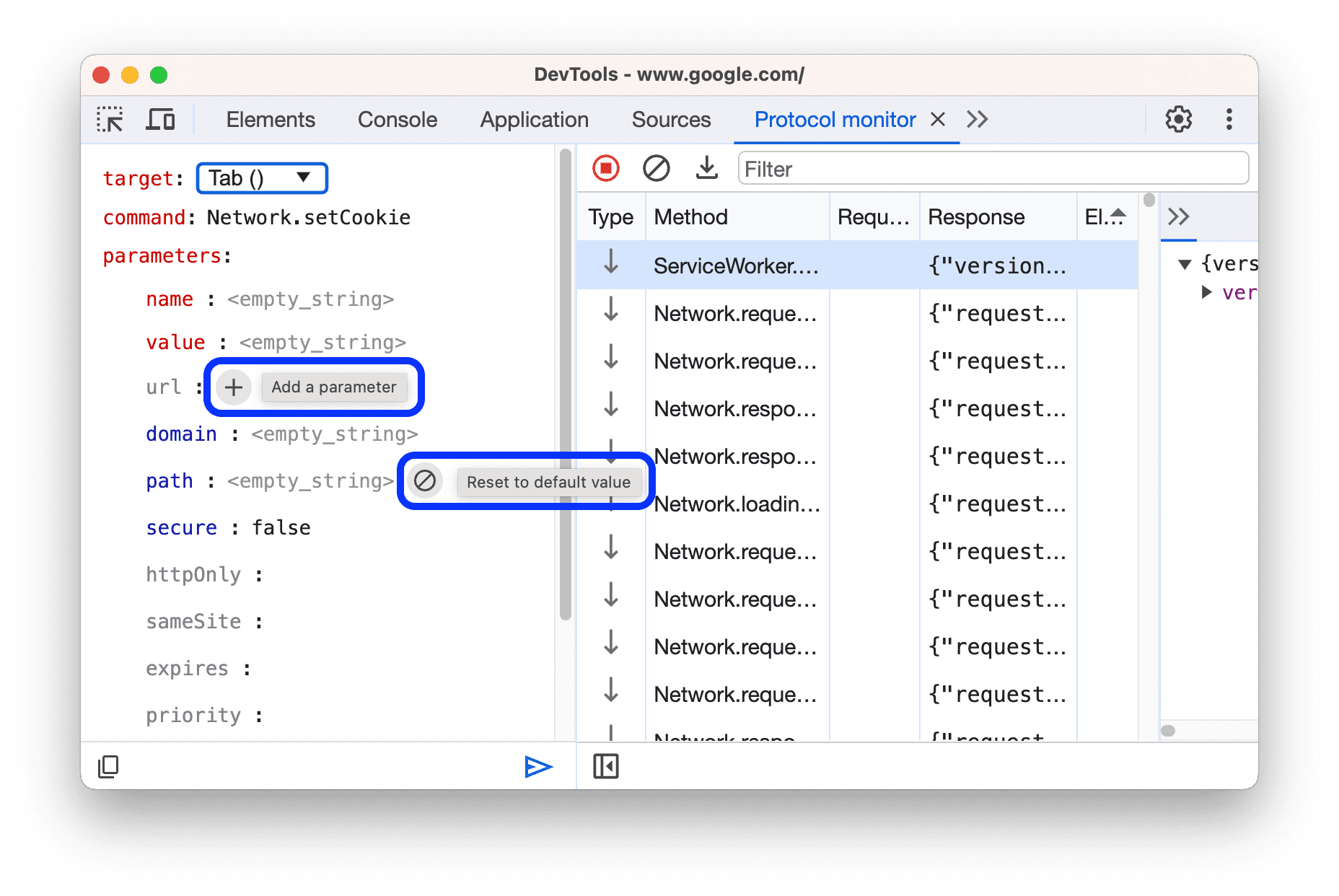
Image source: Chrome for Developers
Why Do Traditional Browser Automation Tools Feel So Heavy?
Core question: Why do popular automation frameworks like Puppeteer and Selenium require so much setup and maintenance overhead?
The traditional browser automation stack follows a predictable but burdensome pattern: download a specific Chromium version, install language runtimes, manage driver compatibility, and pray that version mismatches don’t break your CI pipeline. This approach made sense when browser versions were fragmented and CDP (Chrome DevTools Protocol) was immature, but it creates unnecessary overhead for modern development teams.
The Download-Install-Run Problem
Consider the typical Puppeteer or Playwright setup:
-
Install Node.js runtime (~150MB) -
Install the automation package via npm -
First execution triggers Chromium download (~100-200MB) -
Configure browser paths and environment variables -
Debug version compatibility issues when Chrome updates
In containerized environments, this process repeats on every build. Your Docker images bloat. Your CI minutes burn. Your developers wait.
The Actionbook Alternative
Actionbook CLI inverts this model. Instead of bringing the browser to the tool, it brings the tool to your browser:
Traditional Approach:                    Actionbook Approach:
┌─────────────┐    ┌─────────────┐      ┌─────────────────────────────┐
│  Download   │ -> │   Install   │      │  Use Existing Browser       │
│  Chromium   │    │   Driver    │  vs  │  Chrome/Brave/Edge/Arc      │
└─────────────┘    └─────────────┘      │  via CDP WebSocket          │
     (Slow, Heavy)                      └─────────────────────────────┘
                                              (Fast, Lightweight)
Author’s reflection: This shift feels subtle but represents a fundamental philosophy change. We’ve accepted that browser automation must be heavy because that’s how it’s always been done. But most developers already have Chrome installed. Why are we downloading it again? Actionbook’s approach treats the browser as infrastructure rather than dependency—similar to how we treat the operating system itself.
Architecture: How Rust Enables Native CDP Control
Core question: How does Actionbook achieve 5ms startup times and zero runtime dependencies while maintaining full browser control?
The answer lies in three architectural decisions: using Rust’s systems programming capabilities, communicating directly via Chrome DevTools Protocol over WebSocket, and eliminating intermediate abstraction layers that add latency and complexity.
Module Architecture
Actionbook organizes functionality into focused modules:
src/
├── main.rs              # Entry point, tracing setup
├── cli.rs               # CLI argument definitions (clap)
├── error.rs             # Error types (thiserror)
├── api/
│   ├── client.rs        # Actionbook API communication
│   └── types.rs         # Request/response structures
├── browser/
│   ├── discovery.rs     # Auto-detect installed browsers
│   ├── launcher.rs      # Launch browser with CDP
│   ├── session.rs       # State management
│   └── stealth.rs       # Anti-detection profiles
├── config/
│   └── profile.rs       # Profile management
└── commands/
    ├── search.rs        # Search actions command
    ├── get.rs           # Get action by ID command
    ├── browser.rs       # Browser automation commands
    ├── config.rs        # Config management
    └── profile.rs       # Profile management
The CDP-First Advantage
Most automation frameworks communicate through multiple layers: your script → WebDriver HTTP API → browser driver → browser. Actionbook cuts through this stack:
| Layer | Traditional Stack | Actionbook Stack |
|---|---|---|
| Protocol | HTTP (WebDriver) | WebSocket (CDP) |
| Communication | Request-response | Bidirectional |
| Event streaming | Polling-based | Real-time push |
| Browser control | Indirect via driver | Direct native |
| Runtime dependencies | Node.js/Java/Python | None |
The chromiumoxide crate provides native Rust bindings to CDP, enabling direct WebSocket communication with your browser. This eliminates the ~500-800ms startup overhead seen in Node.js-based tools.
Application scenario: Imagine you’re building a shell script that needs to check a website’s status, extract a price, and email the result. With traditional tools, the automation framework startup time exceeds the actual browser operation. With Actionbook’s 5ms cold start, browser automation becomes as lightweight as curl—suitable for frequent, short-lived tasks.
Performance Comparison
The architectural differences translate to measurable performance gaps:
| Metric | actionbook-rs | actionbook (TypeScript) | agent-browser |
|---|---|---|---|
| Binary size | 7.8 MB | ~150 MB (with Node.js) | ~200 MB |
| Startup time | ~5 ms | ~500 ms | ~800 ms |
| CDP control | Native (chromiumoxide) | Proxied | Puppeteer |
| Runtime dependencies | Zero | Node.js 20+ | Node.js 20+ |
| Browser download | Not required | Not required | Optional |
Unique insight: These numbers aren’t just benchmarks—they change how you architect solutions. A 5ms startup time means you can invoke browser automation in tight loops, from git hooks, or in serverless functions where 500ms would be unacceptable. The tool disappears into the background rather than dominating the execution profile.
Getting Started: From Installation to First Automation
Core question: What are the exact steps to install Actionbook and execute your first browser automation workflow?
Prerequisites
Actionbook requires exactly one thing: a Chromium-based browser already installed on your system. Supported browsers include:
-
Google Chrome (macOS, Linux, Windows) -
Brave (macOS, Linux, Windows) -
Microsoft Edge (macOS, Linux, Windows) -
Arc (macOS only) -
Chromium (macOS, Linux, Windows)
What you don’t need: Node.js, Python, WebDriver, downloaded Chromium binaries, or any runtime dependencies.
Verify your environment:
actionbook browser status
This command scans standard installation paths and reports detected browsers with their CDP connectivity status.
Installation from Source
git clone https://github.com/actionbook/actionbook.git
cd actionbook/packages/actionbook-rs
cargo build --release
The release binary appears at ./target/release/actionbook with a size of approximately 7.8MB (when built with LTO and strip optimizations enabled).
Your First Workflow: Etsy Search Automation
Let’s walk through a complete, realistic scenario: programmatically searching Etsy for Valentine’s Day gifts and capturing the results.
Step 1: Discover available automation actions
actionbook search "etsy"
Output includes area IDs like:
-
etsy.com:/:default— Homepage default region -
etsy.com:/:search_form— Search input form -
etsy.com:/search:search_results— Results listing area
Step 2: Retrieve selector details
actionbook get "etsy.com:/:search_form"
Returns structured selector information including CSS selectors, interaction methods, and stability metadata.
Step 3: Execute browser automation
# Launch browser and navigate to Etsy
actionbook browser open "https://www.etsy.com"

# Navigate to specific category
actionbook browser goto "https://www.etsy.com/market/valentines_day_gifts"

# Input search query
actionbook browser type "input[name=search]" "valentine gifts"

# Trigger search
actionbook browser click "button.search-btn"

# Wait for dynamic content
actionbook browser wait ".search-results"

# Capture evidence
actionbook browser screenshot /tmp/etsy_valentine.png
Author’s reflection: The composability here is powerful. Each command is atomic and idempotent, allowing you to build pipelines through standard shell scripting. Compare this to traditional automation where you’d write a monolithic script, wait for it to execute, then debug the entire flow. Actionbook encourages exploration—you can run commands interactively, see immediate results, and gradually construct your workflow.
Core Capabilities: Beyond Basic Browser Control
Core question: What advanced features does Actionbook provide for production automation scenarios?
Multi-Profile Session Isolation
Modern automation often requires managing multiple identities simultaneously—testing buyer vs. seller views, handling multi-account deployments, or maintaining separate personal and work sessions.
Creating isolated profiles:
# List existing profiles
actionbook profile list

# Create work-specific profile
actionbook profile create work

# Use profile for isolated session
actionbook --profile work browser open "https://example.com"
Each profile maintains:
-
Independent browser data directory (cookies, localStorage, IndexedDB) -
Dedicated CDP port (preventing conflicts) -
Isolated browser preferences and extensions
Profile data stores at:
-
macOS/Linux: ~/.config/actionbook/profiles/<profile>/ -
Windows: %APPDATA%\actionbook\profiles\<profile>/
Application scenario: A SaaS company needs to test their application from both admin and regular user perspectives. Rather than constant login/logout cycles (which trigger security alerts), they maintain two persistent profiles. The admin profile stays logged into the dashboard, while the user profile experiences the customer journey. Switching contexts becomes a --profile flag rather than a complex authentication dance.
Session Persistence Across Commands
Traditional automation loses all browser state when the process exits. Actionbook persists sessions to disk:
# First execution: authenticate
actionbook --profile work browser open "https://github.com/login"
# ... complete authentication manually or via commands ...

# Close browser (state preserved)
actionbook browser close

# Days later: session restored
actionbook --profile work browser open "https://github.com"
# Still authenticated
This persistence model enables long-running monitoring tasks. A cron job can open a browser, check dashboard metrics, and close—without repeating authentication flows.
Stealth Mode: Anti-Detection Automation
Modern websites employ sophisticated bot detection. Standard headless Chrome exposes telltale signs: the navigator.webdriver property, consistent WebGL fingerprints, missing plugins, and behavioral patterns.
Actionbook’s stealth mode applies multi-layer countermeasures:
| Detection Vector | Countermeasure |
|---|---|
| Navigator properties | Spoofs webdriver, platform, hardwareConcurrency, deviceMemory |
| WebGL fingerprint | Overrides renderer/vendor strings to match selected GPU |
| Plugin enumeration | Injects fake Chrome plugins (PDF viewer, Native Client) |
| Automation flags | Disables --enable-automation, adds --disable-blink-features=AutomationControlled |
| Cross-page persistence | Uses Page.addScriptToEvaluateOnNewDocument for injection across navigations |
Activation:
# Default stealth (macOS ARM + Apple M4 Max profile)
actionbook --stealth browser open "https://example.com"

# Custom fingerprint
actionbook --stealth --stealth-os windows --stealth-gpu rtx4080 browser open "https://example.com"

# Environment-based configuration
export ACTIONBOOK_STEALTH=true
export ACTIONBOOK_STEALTH_OS=macos-arm
export ACTIONBOOK_STEALTH_GPU=apple-m4-max
Available profiles:
-
Operating systems: windows,macos-intel,macos-arm,linux -
GPU models: rtx4080,rtx3080,gtx1660,rx6800,uhd630,iris-xe,m1-pro,m2-max,m4-max
Application scenario: A market research firm needs to gather pricing data from a competitor site protected by Cloudflare and DataDome. Direct automated access triggers immediate blocking. Using --stealth --stealth-os windows --stealth-gpu rtx4080, they simulate a gaming desktop user with realistic hardware fingerprints. Combined with residential IP rotation and human-like interaction delays, this achieves 95%+ success rates versus 0% with standard headless approaches.
Author’s reflection: The arms race between automation and detection will never end, but stealth mode acknowledges a reality: many sites aggressively block automation even for legitimate use cases like price monitoring or accessibility testing. The ethical boundary is important—this capability should enhance legitimate testing and data gathering, not enable abuse. Actionbook puts the control in developers’ hands with the expectation of responsible use.
Configuration System: Flexibility Across Environments
Core question: How does Actionbook handle configuration in diverse deployment environments from developer laptops to production CI systems?
Configuration Hierarchy
Actionbook implements a four-tier configuration system where each level overrides the one below:
Priority (highest to lowest):
CLI arguments > Environment variables > Config file > Auto-discovery
This design ensures that local development settings don’t accidentally leak into production, while allowing emergency overrides without file modifications.
Configuration File Format
TOML-based configuration at platform-specific paths:
-
macOS/Linux: ~/.config/actionbook/config.toml -
Windows: %APPDATA%\actionbook\config.toml
Example configuration:
[api]
base_url = "https://api.actionbook.dev"
api_key = "sk-your-api-key"    # Optional, for authenticated API access

[browser]
headless = false
default_profile = "actionbook"

[profiles.actionbook]
cdp_port = 9222
headless = false

[profiles.headless]
cdp_port = 9223
headless = true
Environment Variable Mapping
All configuration values can be overridden via environment variables using the pattern ACTIONBOOK_<SECTION>_<KEY>:
# API authentication
export ACTIONBOOK_API_KEY=sk-your-api-key

# Browser behavior
export ACTIONBOOK_HEADLESS=true
export ACTIONBOOK_BROWSER_PATH=/usr/bin/google-chrome

# Stealth configuration
export ACTIONBOOK_STEALTH=true
export ACTIONBOOK_STEALTH_OS=macos-arm
export ACTIONBOOK_STEALTH_GPU=apple-m4-max
Application scenario: A development team maintains identical config.toml files across environments, with environment-specific overrides in CI. The CI pipeline sets ACTIONBOOK_HEADLESS=true and ACTIONBOOK_STEALTH=true via pipeline variables, while developers work with visible browsers locally. This eliminates “works on my machine” configuration drift without maintaining multiple config files.
Command Reference: Complete Automation Toolkit
Core question: What specific commands are available for browser automation, API interaction, and configuration management?
Search and Retrieve Actions
Search for automation patterns:
actionbook search <QUERY> [OPTIONS]

Options:
  -d, --domain <DOMAIN>     Filter by domain (e.g., "airbnb.com")
  -u, --url <URL>           Filter by specific URL
  -p, --page <N>            Page number [default: 1]
  -s, --page-size <N>       Results per page (1-100) [default: 10]
Retrieve specific action details:
actionbook get <AREA_ID>

# Area ID format: site:path:area
actionbook get "airbnb.com:/:default"
actionbook get "etsy.com:/search:search_results"
Browser Control Commands
| Command | Purpose | Example |
|---|---|---|
browser status |
Check connection and detected browsers | actionbook browser status |
browser open <URL> |
Launch new browser instance | actionbook browser open "https://example.com" |
browser goto <URL> |
Navigate current tab | actionbook browser goto "https://example.com/page2" |
browser click <SELECTOR> |
Click element | actionbook browser click "button.submit" |
browser type <SELECTOR> <TEXT> |
Type text (with delay) | actionbook browser type "#search" "query" |
browser fill <SELECTOR> <TEXT> |
Fill input field | actionbook browser fill "#username" "admin" |
browser wait <SELECTOR> |
Wait for element presence | actionbook browser wait ".loaded" |
browser screenshot [PATH] |
Capture PNG screenshot | actionbook browser screenshot ./page.png |
browser pdf <PATH> |
Save as PDF | actionbook browser pdf ./page.pdf |
browser eval <CODE> |
Execute JavaScript | actionbook browser eval "document.title" |
browser snapshot |
Get accessibility tree | actionbook browser snapshot |
browser inspect <X> <Y> |
Inspect element at coordinates | actionbook browser inspect 100 200 |
browser viewport |
Display viewport dimensions | actionbook browser viewport |
browser connect <PORT> |
Attach to existing CDP instance | actionbook browser connect 9222 |
browser close |
Terminate browser | actionbook browser close |
browser restart |
Restart browser instance | actionbook browser restart |
Cookie Management
actionbook browser cookies list          # List all cookies
actionbook browser cookies get <NAME>    # Retrieve specific cookie
actionbook browser cookies set <NAME> <VALUE>  # Set cookie value
actionbook browser cookies delete <NAME> # Remove specific cookie
actionbook browser cookies clear         # Clear all cookies
Configuration Management
actionbook config show              # Display merged configuration
actionbook config path              # Show config file location
actionbook config get <KEY>         # Retrieve specific value
actionbook config set <KEY> <VALUE> # Update configuration
Global Flags
| Flag | Environment Variable | Description |
|---|---|---|
--json |
Output JSON format | |
--verbose |
Enable detailed logging | |
--headless |
ACTIONBOOK_HEADLESS |
Run without visible UI |
--profile <NAME> |
ACTIONBOOK_PROFILE |
Use specific profile |
--browser-path <PATH> |
ACTIONBOOK_BROWSER_PATH |
Custom browser executable |
--cdp <PORT> |
ACTIONBOOK_CDP |
Connect to existing CDP port |
--api-key <KEY> |
ACTIONBOOK_API_KEY |
API authentication |
--stealth |
ACTIONBOOK_STEALTH |
Enable anti-detection mode |
--stealth-os <OS> |
ACTIONBOOK_STEALTH_OS |
Spoof operating system |
--stealth-gpu <GPU> |
ACTIONBOOK_STEALTH_GPU |
Spoof GPU hardware |
Real-World Application Scenarios
Core question: How do teams actually use Actionbook in production environments?
Scenario 1: CI/CD Visual Regression Testing
Problem: A frontend team needs to catch unintended visual changes before deployment, but traditional screenshot tools require heavy browser installations that slow CI pipelines.
Solution with Actionbook:
# .github/workflows/visual-regression.yml
name: Visual Regression

on: [push]

jobs:
  test:
    runs-on: ubuntu-latest
    steps:
      - uses: actions/checkout@v3

      - name: Install Actionbook
        run: |
          wget https://github.com/actionbook/actionbook/releases/download/v1.0.0/actionbook-linux-amd64
          chmod +x actionbook-linux-amd64
          sudo mv actionbook-linux-amd64 /usr/local/bin/actionbook

      - name: Capture baseline screenshots
        env:
          ACTIONBOOK_HEADLESS: true
          ACTIONBOOK_STEALTH: true
        run: |
          actionbook browser open "https://staging.example.com"
          actionbook browser screenshot baseline-homepage.png
          actionbook browser goto "https://staging.example.com/dashboard"
          actionbook browser screenshot baseline-dashboard.png
          actionbook browser close
Impact: CI setup time drops from minutes (downloading Chromium) to seconds (single binary download). Container images shrink by hundreds of megabytes.
Scenario 2: Competitive Price Monitoring
Problem: An e-commerce team needs daily price checks on 50 competitor SKUs, but sites implement aggressive bot detection.
Automation script:
#!/bin/bash
# daily_price_check.sh

export ACTIONBOOK_STEALTH=true
export ACTIONBOOK_STEALTH_OS=windows
export ACTIONBOOK_STEALTH_GPU=rtx4080

for sku in "${SKUS[@]}"; do
    actionbook --profile monitoring browser open "https://competitor.com/product/$sku"

    # Wait for dynamic pricing to load
    actionbook browser wait ".price-display"

    # Extract price via JavaScript
    PRICE=$(actionbook browser eval "document.querySelector('.price').textContent")

    # Archive screenshot for dispute resolution
    actionbook browser screenshot "/data/prices/$(date +%Y%m%d)/${sku}.png"

    actionbook browser close

    echo "$(date),$sku,$PRICE" >> price_history.csv

    # Human-like delay between requests
    sleep $((RANDOM % 10 + 5))
done
Author’s reflection: This pattern—persistent profiles, stealth mode, and atomic commands—enables automation that respects both technical constraints (anti-bot systems) and business constraints (audit trails via screenshots). The 5ms startup overhead means the loop spends time on actual browser operations, not framework initialization.
Scenario 3: AI-Assisted Browser Automation
Problem: Large language models struggle with raw HTML due to noise from styling and scripts, but need structured page state to make automation decisions.
Actionbook’s accessibility snapshot:
# 1. Capture structured page representation
actionbook browser snapshot > page_state.json

# 2. Send to LLM for decision-making
# (Integration with OpenAI/Claude API here)

# 3. Execute LLM-suggested actions using snapshot refs
actionbook browser click "ref-42"  # Reference from snapshot
actionbook browser type "ref-15" "user input"
The snapshot format includes element references, text nodes, and /url: annotations for links—providing clean, semantic input for AI processing without the noise of CSS classes and JavaScript.
Development and Testing
Core question: How is Actionbook tested and how can developers contribute?
Test Coverage
The project maintains 54 test cases:
-
42 CLI and unit tests (argument parsing, snapshot rendering) -
12 integration tests (API and CLI end-to-end scenarios)
Running tests:
cargo test                          # Execute all tests
cargo test --test cli_test          # CLI-specific tests only
cargo test --test integration_test  # Integration tests only
Build Options
cargo build           # Debug build with symbols
cargo build --release # Optimized release build
Release builds apply LTO (Link Time Optimization) and binary stripping to achieve the minimal 7.8MB footprint.
Action Checklist / Implementation Steps
Immediate setup:
-
Verify Chrome/Brave/Edge/Arc is installed: actionbook browser status -
Clone repository and build: cargo build --release -
Test basic connectivity: actionbook browser open "https://example.com"
Configuration:
-
Create config file at ~/.config/actionbook/config.toml -
Set API key if using Actionbook cloud features: ACTIONBOOK_API_KEY -
Create profiles for different use cases: actionbook profile create <name>
Production deployment:
-
Set ACTIONBOOK_HEADLESS=truefor server environments -
Enable stealth mode for sensitive targets: ACTIONBOOK_STEALTH=true -
Use specific profiles to maintain session persistence across automation runs -
Implement retry logic around browser connectfor existing CDP instances
One-Page Overview
What it is: A Rust-based CLI for browser automation using existing Chrome/Brave/Edge installations via native CDP protocol.
Key differentiators:
-
7.8MB single binary, 5ms startup -
Zero runtime dependencies (no Node.js, no downloaded Chromium) -
Direct WebSocket CDP control (not WebDriver) -
Built-in stealth mode for anti-detection -
Session persistence through disk-based profiles
Core workflow:
actionbook search "etsy"                    # Find automation patterns
actionbook get "etsy.com:/:search_form"     # Retrieve selectors
actionbook browser open "https://etsy.com"  # Launch automation
actionbook browser type "input" "query"     # Interact
actionbook browser screenshot result.png    # Capture
Configuration priority: CLI args > Environment variables > Config file > Auto-discovery
Stealth activation: --stealth --stealth-os windows --stealth-gpu rtx4080
Frequently Asked Questions
Q: Can Actionbook work if I don’t have Chrome installed?
A: No. Actionbook requires an existing Chromium-based browser (Chrome, Brave, Edge, Arc, or Chromium). It does not download browsers automatically.
Q: How does this compare to Puppeteer or Playwright?
A: Actionbook is lighter and faster (7.8MB vs 150-200MB, 5ms vs 500-800ms startup) but focuses on CDP-native automation rather than cross-browser support. Use Actionbook for speed-critical or resource-constrained scenarios; use Puppeteer/Playwright for complex cross-browser testing.
Q: Does stealth mode guarantee bypassing all bot detection?
A: No. Stealth mode significantly improves success rates against fingerprinting-based detection but cannot overcome behavioral analysis, IP reputation checks, or advanced ML-based systems. Use it as one layer in a responsible automation strategy.
Q: Can I connect to a browser that’s already running?
A: Yes. Start Chrome with --remote-debugging-port=9222, then use actionbook browser connect 9222 to attach.
Q: How do I maintain login state between automation runs?
A: Use profiles. Create a profile with actionbook profile create <name>, authenticate once manually or via script, then reuse that profile. Session data persists in the profile’s data directory.
Q: What platforms are supported?
A: macOS, Linux, and Windows. Arc browser is only supported on macOS.
Q: Is there an API for programmatic use, or only CLI?
A: The current focus is CLI-first, but the Rust crate structure allows importing as a library. The Actionbook API (for retrieving selectors) is accessible via the api module.
Q: How do I debug failing automations?
A: Use --verbose for detailed logs. Run without --headless to observe browser behavior visually. Use actionbook browser snapshot to inspect the page structure and verify selectors.

