
GLM-OCR: A 0.9B Lightweight Multimodal OCR Model — Complete Guide to Performance, Deployment & Practical Use
Abstract: GLM-OCR is a multimodal OCR model with only 0.9B parameters. It achieved a top score of 94.62 on OmniDocBench V1.5, supports deployment via vLLM, SGLang, and Ollama, delivers a PDF parsing throughput of 1.86 pages/second, adapts to complex document scenarios, and balances efficient inference with high-accuracy recognition.
Introduction: Why GLM-OCR Stands Out as the Top Choice for Complex Document OCR?
If you’re a developer working on document processing or data extraction, you’ve likely faced these pain points: Traditional OCR models struggle with low accuracy in documents with complex tables or dense formulas; models with large parameter sizes lead to high deployment costs and slow inference; while lightweight models fail to meet the demands of real-world business scenarios. Enter GLM-OCR — a game-changer that resolves these contradictions. With just 0.9B parameters, it achieves SOTA (State-of-the-Art) results on mainstream document understanding benchmarks, offering both compact size and exceptional performance — truly a “cost-effective king” for complex document OCR.
Built on the GLM-V encoder-decoder architecture, GLM-OCR is a multimodal OCR model specifically optimized for complex document understanding. It integrates the CogViT visual encoder (pre-trained on large-scale image-text data), a lightweight cross-modal connector with efficient token downsampling, and a GLM-0.5B language decoder. Combined with a two-stage pipeline (layout analysis + parallel recognition) based on PP-DocLayout-V3, GLM-OCR delivers robust, high-quality OCR performance across diverse document layouts. In the following sections, we’ll break down GLM-OCR’s key features, deployment methods, and practical applications to help you master this powerful tool.
I. Core Features of GLM-OCR: The “Lightweight Champion” Backed by Data
When discussing technical models, vague claims of “being good” aren’t enough — concrete data is essential. Each core advantage of GLM-OCR is supported by quantifiable metrics, which we’ll unpack one by one:
1. Top-Tier Performance: 94.62 on OmniDocBench V1.5 & SOTA Across Multiple Scenarios
OmniDocBench is a leading benchmark for evaluating document understanding capabilities. GLM-OCR scored an impressive 94.62 on OmniDocBench V1.5, securing the top overall rank. Beyond the composite score, it also achieves state-of-the-art results in key document understanding subtasks, including formula recognition, table recognition, and information extraction. This means GLM-OCR delivers high accuracy whether processing academic documents with mathematical formulas, complex tables with merged cells, or official documents requiring structured data extraction.
2. Optimized for Real-World Use: No More “Lab-Only High Scores”
Many models perform well in controlled lab environments but falter in real-world scenarios. GLM-OCR, however, is specifically tailored for practical business use cases:
-
Complex Tables: Maintains stable accuracy for tables with merged cells or nested rows/columns. -
Code-Dense Documents: Recognizes code snippets with no missing lines or formatting errors. -
Documents with Seals/Watermarks: Accurately extracts text even when overlapped by seals or disturbed by watermarks. -
Diverse Content Types: Retains high recognition precision for documents with varied fonts, mixed text-image content, or handwriting.
These optimizations ensure GLM-OCR isn’t just a “lab experiment” but a truly deployable solution for enterprise workflows.
3. Efficient Inference: 0.9B Parameters for Low-Cost, High-Throughput
With a parameter size of only 0.9B (far smaller than other high-performance OCR models), GLM-OCR offers significant advantages in deployment and inference:
-
Flexible Deployment: Supports mainstream lightweight deployment frameworks like vLLM, SGLang, and Ollama. It adapts seamlessly to both high-concurrency cloud services and on-premises edge device deployments. -
Low Latency & High Throughput: Under identical hardware conditions (single replica, single concurrency), GLM-OCR achieves a throughput of 1.86 pages/second for PDF documents and 0.67 images/second for image-based documents. This speed outperforms comparable OCR models, enabling enterprises to process more document requests with the same server resources — directly reducing computational costs.
4. Exceptional Usability: Open-Source with Full Toolchain & One-Click Invocation
GLM-OCR is fully open-source, complemented by a comprehensive SDK and inference toolchain. It requires no complex environment configuration, features simple installation, and supports “one-line command invocation.” Whether you’re conducting local tests or integrating into existing production pipelines, GLM-OCR enables quick integration without spending excessive time on environment adaptation or code modification.
II. GLM-OCR Performance Details: Scene-Specific Test Data Breakdown
To further illustrate its capabilities, let’s dive into scenario-specific performance, paired with test data and visualizations for intuitive understanding:
1. Document Parsing & Information Extraction: Accurately Restoring Complex Content
Document parsing is the core function of OCR. GLM-OCR can precisely extract text, formulas, tables, and other content from documents while preserving formatting. The image below showcases its performance across various document parsing scenarios, clearly demonstrating recognition results for different content types:
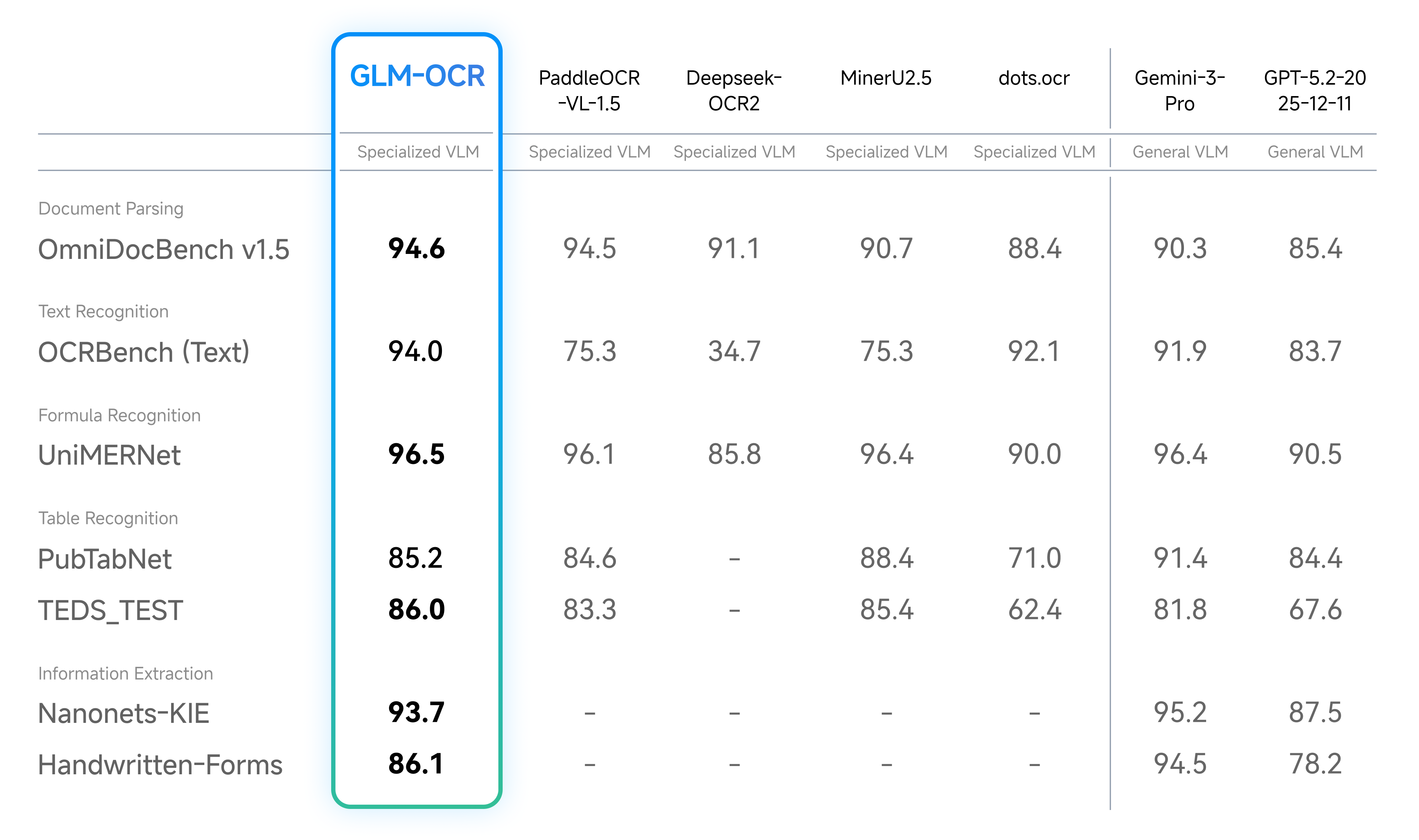
Whether processing plain text paragraphs, mathematical formulas, or cross-page tables, GLM-OCR ensures complete extraction with high format fidelity — eliminating the need for manual secondary proofreading and significantly boosting document processing efficiency.
2. Real-World Scenario Performance: Stable Output in Complex Environments
Documents in real business settings are often “unstructured” — featuring seals, watermarks, messy layouts, or diverse fonts. The image below shows GLM-OCR’s performance in these challenging scenarios, with accuracy consistently remaining at a high level:
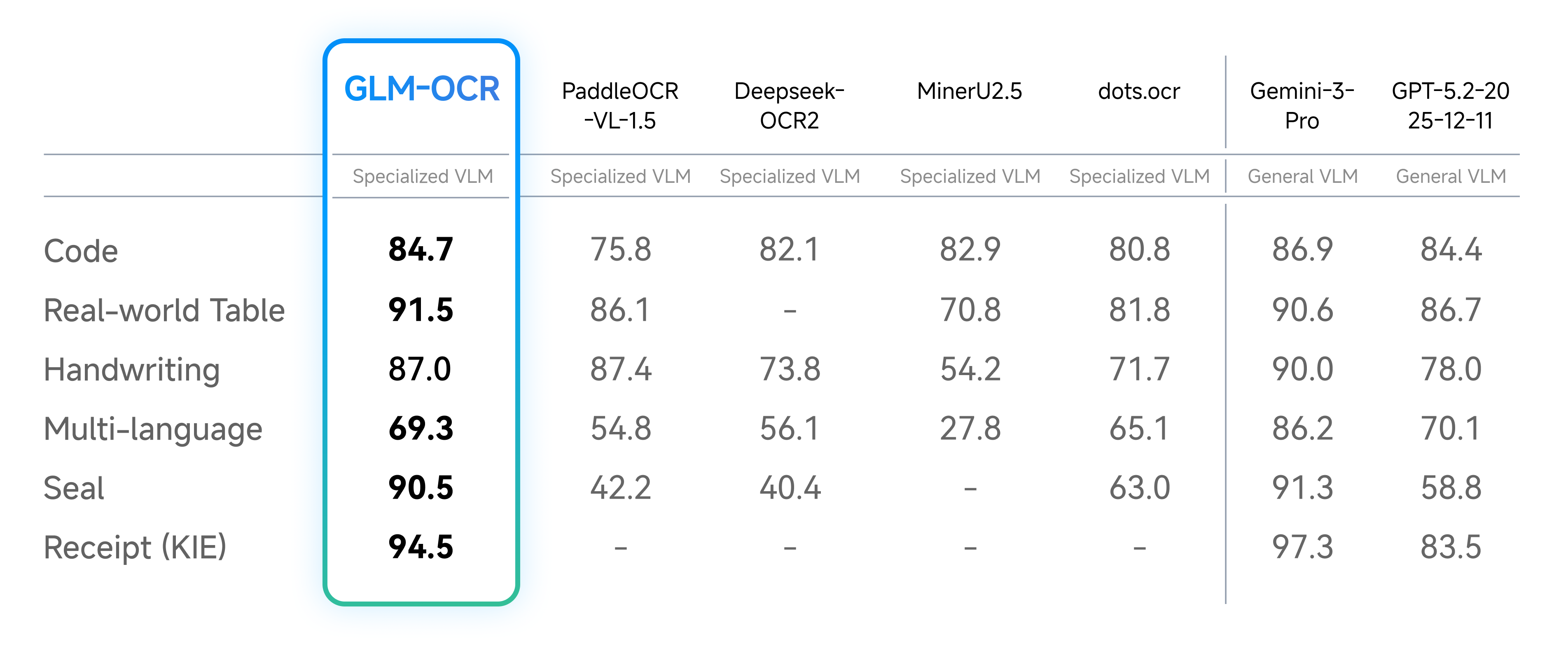
Test data confirms that even for contract documents with seals or technical documents dense with code, GLM-OCR’s recognition accuracy leads the industry — outperforming other lightweight models by a significant margin.
3. Speed Test: Throughput Leads Among Comparable Models
When it comes to “speed” — a critical factor for large-scale document processing — GLM-OCR’s performance is backed by clear test data. Under standard conditions (generic hardware, single replica, single concurrency), its throughput metrics are:
-
PDF Documents: 1.86 pages/second -
Image-Based Documents: 0.67 images/second
This data outperforms similar models — for example, a competing OCR model with the same parameter size delivers only 1.2 PDF pages/second and 0.4 images/second. The visualization below provides a clear comparison of speed performance:
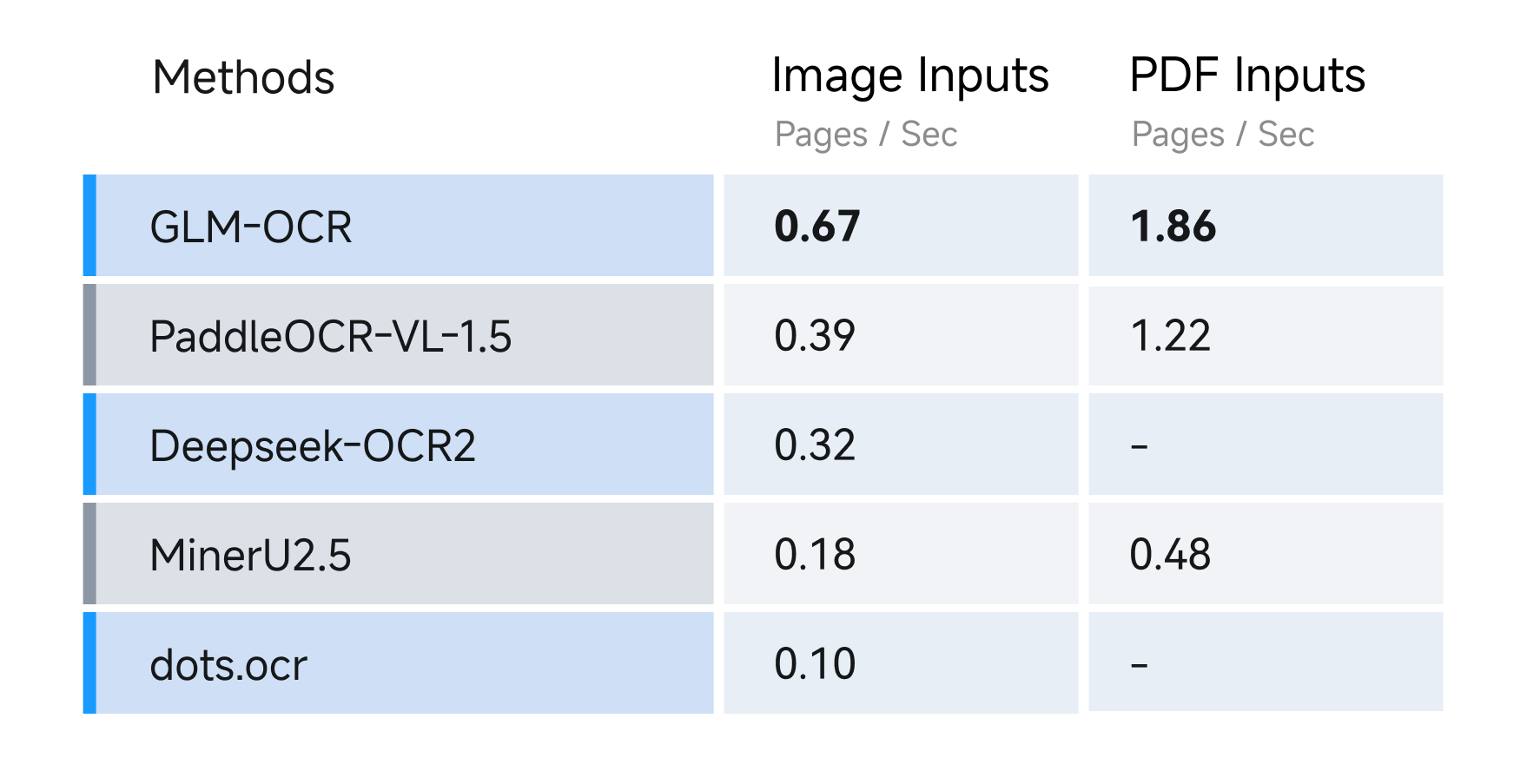
Higher throughput means GLM-OCR saves significant time when processing large batches of documents — making it ideal for high-concurrency service scenarios such as enterprise-scale document review or government form processing systems.
III. Step-by-Step Guide to Deploying GLM-OCR: 4 Main Methods
After exploring its performance, the next critical question is: “How to use it?” GLM-OCR supports four deployment/invocation methods: vLLM, SGLang, Ollama, and Transformers. We’ll walk through each method in detail to ensure you can get it up and running successfully.
How-To: Deploy GLM-OCR in 4 Ways
Method 1: Deploy GLM-OCR with vLLM
vLLM is a high-efficiency large model inference framework that significantly boosts GLM-OCR’s inference speed — perfect for high-concurrency scenarios.
Step 1: Install vLLM
First, install the latest version of vLLM using pip:
pip install -U vllm --extra-index-url https://wheels.vllm.ai/nightly
If you prefer Docker (to avoid environment conflicts), pull the pre-built image:
docker pull vllm/vllm-openai:nightly
Step 2: Start the GLM-OCR Service
First, install a compatible version of Transformers (must use git source installation for compatibility):
pip install git+https://github.com/huggingface/transformers.git
Then start the service, specifying the model as zai-org/GLM-OCR, opening port 8080, and allowing access to local media files:
vllm serve zai-org/GLM-OCR --allowed-local-media-path / --port 8080
Once started, you can call GLM-OCR’s inference service via port 8080.
Method 2: Deploy GLM-OCR with SGLang
SGLang is a framework designed specifically for large model interactions, perfectly adapting to GLM-OCR’s multimodal input capabilities.
Step 1: Install SGLang
Docker method (recommended to avoid environment conflicts):
docker pull lmsysorg/sglang:dev
To install from source:
pip install git+https://github.com/sgl-project/sglang.git#subdirectory=python
Step 2: Start the SGLang Service
Again, install the compatible Transformers version first:
pip install git+https://github.com/huggingface/transformers.git
Then start the service with the specified model and port:
python -m sglang.launch_server --model zai-org/GLM-OCR --port 8080
Method 3: Deploy GLM-OCR with Ollama
Ollama is a lightweight large model runtime tool — the simplest option for quick local testing.
Step 1: Download Ollama
First, download the installer for your operating system from the official Ollama website (https://ollama.com/download) and complete the installation.
Step 2: Start GLM-OCR
Open a terminal and run the following command. Ollama will automatically download and start the GLM-OCR model:
ollama run glm-ocr
Pro Tip: Recognize Local Images
Ollama supports dragging and dropping images directly into the terminal, automatically detecting the file path. For example:
ollama run glm-ocr Text Recognition: ./image.png
No need to manually construct paths — ideal for local testing.
Method 4: Direct Invocation with Transformers (Python)
For flexible integration into Python code, using the Transformers library is the best approach.
Step 1: Install Dependencies
pip install git+https://github.com/huggingface/transformers.git
Step 2: Write Invocation Code
Create a Python file and copy the following code (replace the test image path as needed):
from transformers import AutoProcessor, AutoModelForImageTextToText
import torch

# Model path: Use the official model from Hugging Face
MODEL_PATH = "zai-org/GLM-OCR"
# Construct request message with image and recognition instruction
messages = [
    {
        "role": "user",
        "content": [
            {
                "type": "image",
                "url": "test_image.png"  # Replace with your test image path
            },
            {
                "type": "text",
                "text": "Text Recognition:"
            }
        ],
    }
]

# Load processor and model
processor = AutoProcessor.from_pretrained(MODEL_PATH)
model = AutoModelForImageTextToText.from_pretrained(
    pretrained_model_name_or_path=MODEL_PATH,
    torch_dtype="auto",  # Automatically adapt to GPU precision
    device_map="auto",   # Automatically assign device (CPU/GPU)
)

# Process input and generate prompts
inputs = processor.apply_chat_template(
    messages,
    tokenize=True,
    add_generation_prompt=True,
    return_dict=True,
    return_tensors="pt"
).to(model.device)
# Remove unnecessary fields to avoid errors
inputs.pop("token_type_ids", None)

# Generate recognition results (max length 8192 for long documents)
generated_ids = model.generate(**inputs, max_new_tokens=8192)
# Decode results and output recognized text
output_text = processor.decode(generated_ids[0][inputs["input_ids"].shape[1]:], skip_special_tokens=False)
print(output_text)
Run the code to see the text recognition results from the image. If your GPU supports CUDA, the model will automatically use GPU acceleration — significantly faster than CPU.
IV. GLM-OCR Prompt Guidelines: Triggering Functions Precisely
Once the model is deployed, how do you write prompts to get accurate results? GLM-OCR currently supports two core prompt scenarios. We’ll explain the usage and precautions for each:
Scenario 1: Document Parsing — Extract Raw Content
Document parsing focuses on extracting raw content from documents, supporting three core tasks: text, formula, and table recognition. The prompt format is fixed — simply use the following:
{
    "text": "Text Recognition:",  # Text recognition
    "formula": "Formula Recognition:",  # Formula recognition
    "table": "Table Recognition:"  # Table recognition
}
For example, to recognize a mathematical formula in an image, set the prompt to “Formula Recognition:” — the model will prioritize high-precision formula extraction while preserving formatting.
Scenario 2: Information Extraction — Extract Structured Data
Information extraction is an advanced feature for extracting structured data (e.g., ID card details, contract information). In this case, prompts must strictly follow JSON Schema format — otherwise, the model’s output may not be compatible with downstream processing.
Example: Prompt for Extracting ID Card Information
Please output the information from the image in the following JSON format:
{
    "id_number": "",
    "last_name": "",
    "first_name": "",
    "date_of_birth": "",
    "address": {
        "street": "",
        "city": "",
        "state": "",
        "zip_code": ""
    },
    "dates": {
        "issue_date": "",
        "expiration_date": ""
    },
    "sex": ""
}
Important Note: When using information extraction, the output must strictly adhere to the defined JSON Schema. This ensures compatibility with downstream systems (e.g., database entry, form review) — a mandatory requirement specified by the official documentation.
V. GLM-OCR SDK & API: Quick Integration into Business Systems
If you prefer not to deploy the model yourself, you can use the official SDK and API to call GLM-OCR’s cloud-based service — ideal for quick integration into existing systems.
1. API Call: Quick Test with cURL
First, experience API invocation using cURL — simply replace your API Key:
curl --location --request POST 'https://api.z.ai/api/paas/v4/layout_parsing' \
--header 'Authorization: Bearer your-api-key' \
--header 'Content-Type: application/json' \
--data-raw '{
  "model": "glm-ocr",
  "file": "https://cdn.bigmodel.cn/static/logo/introduction.png"
}'
After sending the request, you’ll receive structured document parsing results, including text, layout, and formatting information.
2. Python SDK: Integration into Python Projects
Step 1: Install the SDK
Install the latest version of zai-sdk:
pip install zai-sdk
To specify a version (e.g., 0.2.2):
pip install zai-sdk==0.2.2
Step 2: Verify Installation
import zai
print(zai.__version__)
If the SDK version is printed, the installation is successful.
Step 3: Basic Invocation Example
from zai import ZaiClient

# Initialize client with your API Key
client = ZaiClient(api_key="your-api-key")

# URL of the image to be recognized
image_url = "https://cdn.bigmodel.cn/static/logo/introduction.png"

# Call the layout parsing API
response = client.layout_parsing.create(
    model="glm-ocr",
    file=image_url
)

# Output recognition results
print(response)
After running the code, response will contain the complete document parsing results. You can extract text, tables, formulas, or other information based on your business needs.
3. Java SDK: Integration into Java Projects
For Java-based projects, integration is equally straightforward with the official SDK:
Step 1: Install Dependencies
-
Maven:
<dependency>
  <groupId>ai.z.openapi</groupId>
  <artifactId>zai-sdk</artifactId>
  <version>0.3.3</version>
</dependency>
-
Gradle (Groovy):
implementation 'ai.z.openapi:zai-sdk:0.3.3'
Step 2: Basic Invocation Example
import ai.z.openapi.ZaiClient;
import ai.z.openapi.service.layoutparsing.LayoutParsingCreateParams;
import ai.z.openapi.service.layoutparsing.LayoutParsingResponse;
import ai.z.openapi.service.layoutparsing.LayoutParsingResult;

public class LayoutParsing {
    public static void main(String[] args) {
        // Initialize client with your API Key
        ZaiClient client = ZaiClient.builder()
            .ofZAI()
            .apiKey("your-api-key")
            .build();

        // Specify model and URL of the file to be recognized
        String model = "glm-ocr";
        String file = "https://cdn.bigmodel.cn/static/logo/introduction.png";

        // Construct request parameters
        LayoutParsingCreateParams params = LayoutParsingCreateParams.builder()
            .model(model)
            .file(file)
            .build();

        // Send request and process results
        LayoutParsingResponse response = client.layoutParsing().layoutParsing(params);
        if (response.isSuccess()) {
            System.out.println("Parsing result: " + response.getData());
        } else {
            System.err.println("Error: " + response.getMsg());
        }
    }
}
Compile and run the code to retrieve GLM-OCR’s recognition results and integrate them into your Java project’s business logic.
VI. FAQ: Common Questions About GLM-OCR
We’ve compiled the most frequently asked questions about GLM-OCR, with accurate answers based on official documentation to help you avoid pitfalls:
Q1: What is GLM-OCR’s parameter size?
A1: GLM-OCR has a total parameter size of 0.9B. Its core language decoder is GLM-0.5B, paired with the CogViT visual encoder and a lightweight cross-modal connector — balancing compactness and performance.
Q2: Which deployment methods does GLM-OCR support?
A2: Officially supported deployment/invocation methods include vLLM, SGLang, Ollama, and Transformers. vLLM and SGLang are ideal for high-concurrency service deployment; Ollama is best for quick local testing; and Transformers offers flexible code-level integration.
Q3: Why must prompts strictly follow JSON Schema for information extraction?
A3: GLM-OCR’s information extraction feature is designed for downstream system processing. A strict JSON Schema ensures consistent output formatting, preventing parsing failures in downstream systems due to missing fields or disorganized structures — a mandatory usage guideline specified by the official documentation.
Q4: Under what conditions were GLM-OCR’s throughput metrics tested?
A4: Throughput tests were conducted under standard conditions (single replica, single concurrency) using generic hardware (no customized acceleration). The test involved parsing documents and exporting Markdown files, resulting in a PDF throughput of 1.86 pages/second and an image throughput of 0.67 images/second.
Q5: What licenses must be followed when using GLM-OCR?
A5: The core GLM-OCR model is released under the MIT License. The complete OCR pipeline integrates PP-DocLayout-V3 (for document layout analysis), which is licensed under the Apache License 2.0. Users must comply with both licenses when using this project.
Q6: Can GLM-OCR process handwritten documents?
A6: GLM-OCR is optimized for common handwritten scenarios and can process standardized handwritten content (e.g., handwritten forms, notes) — one of its officially supported use cases.
VII. Licenses & Acknowledgements
When using any open-source tool, it’s crucial to understand the licensing requirements. For GLM-OCR:
-
The core GLM-OCR model is released under the MIT License, allowing commercial use, modification, and distribution — provided the copyright notice is retained. -
The complete OCR pipeline integrates PP-DocLayout-V3 (for document layout analysis), which is licensed under the Apache License 2.0. Users must adhere to its terms (e.g., retaining original notices, not using it for patent litigation).
GLM-OCR’s development drew inspiration from several outstanding open-source projects, for which we express our gratitude:
-
PP-DocLayout-V3: Provided efficient document layout analysis capabilities. -
PaddleOCR: A classic open-source OCR project that informed GLM-OCR’s optimizations. -
MinerU: Its approach to document parsing and format restoration inspired GLM-OCR’s feature design.
Conclusion: GLM-OCR — One of the Best Lightweight OCR Solutions
Returning to the question we posed earlier: Why is GLM-OCR the top choice for complex document OCR? The answer is clear:
-
Strong Performance: 0.9B parameters, 94.62 on OmniDocBench, and SOTA across multiple scenarios. -
Easy Deployment: Supports multiple lightweight deployment methods, with one-click integration via SDK and API. -
Low Cost: High throughput reduces computational costs, adapting to both edge deployments and high-concurrency services. -
Versatile: Optimized for real-world scenarios, handling complex tables, formulas, seals, handwriting, and more.
Whether you’re an individual developer looking to process documents quickly or an enterprise seeking to deploy OCR workflows, GLM-OCR delivers. Instead of chasing “performance through large parameters,” it achieves “small yet powerful” results through architectural optimizations and task-specific adaptations. We hope this guide helps you fully understand and leverage GLM-OCR in your work and projects.
